Your data
Sync and backup
Tisty always works on this computer. To reach your work from another one, tell it where to leave the copies — and the rest it does on its own.
Tisty always works on this computer. To reach your work from another one, tell it where to leave the copies — and the rest it does on its own.
There is nothing in the middle: no account, no server, no daemon of ours. If you sync nothing, syncing opens no connection at all; the few other requests Tisty makes are in Privacy.
Choosing the folder
Tisty offers Google Drive, OneDrive, iCloud and Dropbox — whichever it finds installed, with the folder already worked out — or any other folder both computers reach: a NAS, Syncthing, an external disk you plug in on Fridays.
Settings › Sync has Sync now, which says when it ran and whether something came back or was written to the folder.
Google Drive, since 1.31 OneDrive, and since 1.32 a WebDAV server of your own can also be connected directly, with no program of theirs on the computer: see Syncing through Google Drive directly, Syncing through OneDrive directly and Syncing through your own WebDAV server. What Tisty keeps in any of those three can also be encrypted: see Encrypting your cloud.
When a machine leaves a folder, it writes a short note in it, README - Tisty.txt, saying where its copies went and how to come back. It takes the note away when it chooses that folder again.
A place that already holds a Tisty
A new computer joins without asking. If this computer holds nothing of yours yet — only the guide and the starting lists Tisty puts there the first time it opens — it simply takes what the folder or your Google Drive already holds. What it had is kept first in a backup inside Tisty’s private folder. If you already typed your 24-word phrase here and the folder holds another person’s Tisty, it takes nothing on its own: it asks.
It shows «Bringing your Tisty from …», naming the folder or Google Drive, with a moving bar and counts as things arrive: the history, then documents, then attachments. The more the place holds, the longer this first round takes, and your tasks arrive first. Keep working while it arrives lets you into Tisty while the round goes on: the foot of the sidebar keeps counting what arrives and, if the round could not finish, says why there. If you close Tisty, it carries on where it left off next time.
A single failed round does not hold you back either: you go in and later rounds keep trying. Only when it keeps failing does it stop to say what stands in the way, with Go in anyway.
If it holds anything you made — a task, a document, a list of your own, a change to the guide — Tisty asks instead, naming the place: Merge the two, Keep this machine, or Take what the folder has (Take what Google Drive has). Whatever you pick, a backup is written first, and if a sync is under way your choice waits for it to finish. If what the place holds answers to another person’s phrase, Merge the two is not there: a Tisty is only ever one person’s.
If your cloud is encrypted, a new computer is let in first: see Your other computers.
Confirming your machines
Each machine signs what it writes. One you already knew is recognised on its own when it updates. A new one — just installed or reinstalled — waits until you confirm it is yours:
- A notice in the sidebar names that computer, and Confirm… shows its twenty-digit code.
- On that machine, open Settings › Sync, under Your computers. Show large makes the code easy to read from across the desk.
- If the codes match, Yes, it is the same lets it through and brings in what it wrote. If not, It doesn’t match keeps it out.
You do it once on each of your other machines. Until then nothing that machine writes comes in, and from then on whatever does not answer to its key is turned away — and Tisty says so.
Rename there chooses how your other machines show this one; left empty, it goes back to the system’s name.
When two machines write the same document
Tisty merges block by block: you edit the introduction on one machine, someone edits the closing paragraph on the other, and both land with nothing to answer. Only a real overlap becomes a question: the window shows the two side by side and you keep This one, The other or Both.
Large attachments
By default every machine carries every attachment, so any of them opens anything with the network off. For files above 25 MB, Settings offers two other ways:
- keep only what this machine attached, and fetch the rest when you open it;
- leave them in the shared folder and nowhere else.
A local copy is only let go of after the one in the shared folder is found to hash the same. If the folder is not reachable, Tisty says so plainly.
Backups
Back up by hand, shared folder or not — a shared folder is not a backup. Settings › Your data writes one zip with your whole history, kept wherever you like, and restores from the same place.
Syncing through Google Drive directly
Since 1.30, Tisty can sync through your own Google Drive without Google’s desktop program. Here Tisty is the one talking to Drive, so unlike with a folder, it knows when something is wrong and says so on the Google Drive card in Settings › Sync. Whatever the card says, what you write is safe on this machine and goes up once the cause is gone.
Connecting it
Settings › Sync › Your cloud service › Google Drive › Connect. Your browser opens on Google’s own page; sign in and allow Tisty to keep its copies there. Tisty asks only for a hidden space of its own in your Drive, so it cannot see anything else there, and its copies do not show up among your files. Then Start uploading: the first time everything you have goes up, and if you close Tisty or lose the network it carries on where it left off. Do the same on your other computer, with the same Google account.
On a computer that holds nothing of yours yet, if your Drive already holds your Tisty, the card says «Your Google Drive already holds your Tisty» and the button reads Sync instead: nothing has to go up first, and Tisty brings what is there to this computer. A computer that already holds work of its own asks first (see A place that already holds a Tisty).
A round of syncing that runs past a minute says for how long on the Sync now button, Syncing for 3 min…, so a long first round never looks frozen.
It can only be connected from the window. Assistants never reach the network, and a copy of Tisty built without the project’s Google credentials does not offer the cloud at all.
Before you sign in, and before a move to Drive starts, Tisty checks that Google answers: one request to www.googleapis.com with nothing of yours in it, given up after 10 seconds. If a proxy, a filter at work or an antivirus is in the way, or if it inspects secure connections, or if Google is having trouble, Tisty says so in red there, in plain words, with Check again; if Google was only slow to answer, it says so in grey, and that you can connect anyway. It never stops you from connecting, never goes around a proxy, and never runs on a round of syncing.
What travels, and what stays
Your history, your documents and their settings go up. Attachments stay on the computer they were added on; on another one each comes down the first time you open it there. Free up space, in Settings › Maintenance, lets go of the attachments you have not opened in a while; the next time you open one, it comes down again. Attachments are capped at 650 MB, on a task or in a document, as with a folder, and nothing over 750 MB is taken in from the cloud.
What the card says
- «Google no longer lets Tisty in» — the permission was removed, from your Google account or with Remove Tisty’s access on every computer, or it expired. Press Reconnect and sign in again. Removing access on one machine removes it on all of them, so each one will ask.
- «This copy belongs to another account» — you signed in with a different Google account from the one this copy already syncs with. Tisty stops rather than mix two accounts. Press Change account and sign in with the one you used before. If you really mean to sync with a different account, move there instead (below).
- «Your Google Drive is full» — your Drive has no room left. Tisty sends your tasks first; the rest, including what your other computers send, waits until you free up space in Drive or get more. See storage opens Google’s page for it.
- «Your cloud reached today’s limit» — every computer has its own daily allowance, 2,000,000 requests’ worth and 50 GB downloaded, so no single copy can spend the quota Google grants the project. It is per computer, not per person. When it runs out, syncing carries on the next day by itself. Cloud use today, under Free up space in Settings › Maintenance, shows how much is left.
- «Google asked to wait a little» — Google is slowing everyone down for a moment. Tisty waits as long as Google says and carries on by itself. There is nothing to do.
- «The cloud is paused for now» — the project can pause syncing on every copy for a while, should its shared quota with Google be at risk; the notice is signed, so nobody else can send it. It lifts by itself. Turn off on the card does the same on this computer only, until you turn it on again.
- «Google is having trouble» — the trouble is on Google’s side. Tisty tries again by itself; there is nothing to do.
- «Your cloud couldn’t be reached» — Tisty could not talk to Google. If this computer is offline, that is all it says, and everything goes up once the connection is back. If something else keeps standing in the way, it says what in red underneath: see below.
When something stands in the way of Google
One failed round is a blip, and Tisty says nothing about it. When rounds keep failing to reach Google — a second one in a row, or two minutes after the first one failed — the card says what stands in the way, in red, and the same words show after Sync now, at the foot of the sidebar and in a move that is waiting. What stands in the way may change from one round to the next; it is still one stretch of failing, and the card names the latest. A connection that drops halfway through a transfer is not said to be blocked: it is only tried again. In every case what you write stays safe on this computer and Tisty keeps trying by itself.
- «Something has been blocking the connection with Google Drive for a while: it may be a proxy, a filter at your company or an antivirus.» — something between this computer and Google turns Tisty away. On a work or school network, ask whoever runs it to let Tisty reach
accounts.google.com,oauth2.googleapis.comandwww.googleapis.com. On your own computer, check whether your antivirus or firewall blocks Tisty, and allow it there. - «A filter on your network or an antivirus is inspecting secure connections and Tisty cannot trust it.» — something opens secure connections to look inside them, and Tisty only sends your copies over a connection it can verify as Google’s. On a work network, ask for Tisty to be let through, that is, left out of that inspection. On your own computer, look in your antivirus for the option that scans secure (HTTPS) connections, and leave Tisty out of it.
- «Google Drive is taking a while to answer from this network.» — the network is slow or crowded. There is nothing to do; if it lasts, trying another network tells you whether it is this one.
Tisty never goes around a proxy or a filter, and you should not either: do not switch off your company’s protection on your own, ask for Tisty to be let through. The same causes are said in red, with Check again, when you connect Google Drive or move to it.
Leaving Google Drive
Move to another place… takes your copies to a folder or back to this machine alone. Tisty first brings home everything that lived only in Drive, then tells your other computers where you went so each one follows when it syncs. Nothing is deleted in Drive unless you ask; Delete my copies in Google Drive for good deletes them afterwards, and since Tisty’s space in Drive has no bin, they cannot be brought back. To stop one computer without moving the others, use Disconnect this computer: the copies stay in Drive.
Where are my copies in Drive?
In a hidden space of your Drive that belongs to Tisty: they do not show up among your files, and only Tisty opens them. To take them out, move to a folder from Tisty. Disconnecting keeps them, and coming back later to the same account picks them up again, also after Disconnect from Drive in Google Drive › Settings › Manage apps, which only withdraws Tisty’s access. Only Delete hidden app data there deletes them, as does Delete my copies in Google Drive for good in Tisty.
Syncing through OneDrive directly
Since 1.31, Tisty can sync the same way through your own personal OneDrive, without Microsoft’s desktop program. It works like Google Drive above: the same first round, the same card in Settings › Sync, the same check of the way before you sign in, and the same move to leave it.
- Connecting it: Settings › Sync › Your cloud service › OneDrive › Connect. Your browser opens on Microsoft’s own page; sign in and allow Tisty to keep its copies there. Tisty never sees your password.
- Where the copies are: in Apps › Tisty in your OneDrive. Unlike Google’s hidden space, it is a folder you can see. Leave it to Tisty: what you change there by hand is read as a change from another computer. Deleting it sends your copies to OneDrive’s recycle bin, where they can be restored.
- Long uploads carry on where they were cut, and a write that fails halfway is tried again.
- Letting go: Disconnect this computer forgets the access on that machine only. Remove Tisty’s access on every computer forgets it here and opens your Microsoft account in the browser, where you remove Tisty for every machine at once. Your copies stay in your OneDrive.
Before you sign in, Tisty checks that Microsoft answers, with one request to graph.microsoft.com that carries nothing of yours. Like Drive, it can only be connected from the window.
Syncing through your own WebDAV server
Since 1.32, Tisty can keep its copies on a server of your own — Nextcloud, ownCloud, Synology and others — talking to it over WebDAV, with no program in between and no browser sign-in. It works like Google Drive above: the same first round, the same card in Settings › Sync and the same move to leave it.
- Connecting it: Settings › Sync › Your cloud service › WebDAV. Type the Server address, your User and a Password, and press Connect. Before anything is kept, Tisty checks the server: it signs in with what you typed and makes sure the server will not let two computers write over each other; if it would, nothing is connected. Only
https://addresses are taken, since the password travels with every request; plainhttp://is refused, except to this very computer. - The password stays on this computer, kept by the system: the keychain on macOS, a file sealed for your user on Windows. It never reaches the log, a backup or a parcel. An app password from your server is better than your main one, since you can remove it there whenever you like. If the server asks again, Tisty only asks you for the password.
- Where the copies are: in a Tisty folder inside the folder your address points at; Tisty touches nothing beside it. You can see it on your server. Leave it to Tisty: what you change there by hand is read as a change from another computer.
- Your server sets the limit and the pace: what it has free is your ceiling, and Tisty looks for changes every two minutes. Attachments always stay on this computer as well, so Free up space is not offered.
- Letting go: Disconnect this computer forgets the password on that machine only and keeps your copies, here and on the server. To withdraw access on every computer, remove the app password, or change the password, on your server. Delete my copies in WebDAV for good deletes them from the server, which sends them to its bin if it keeps one.
Encrypting your cloud
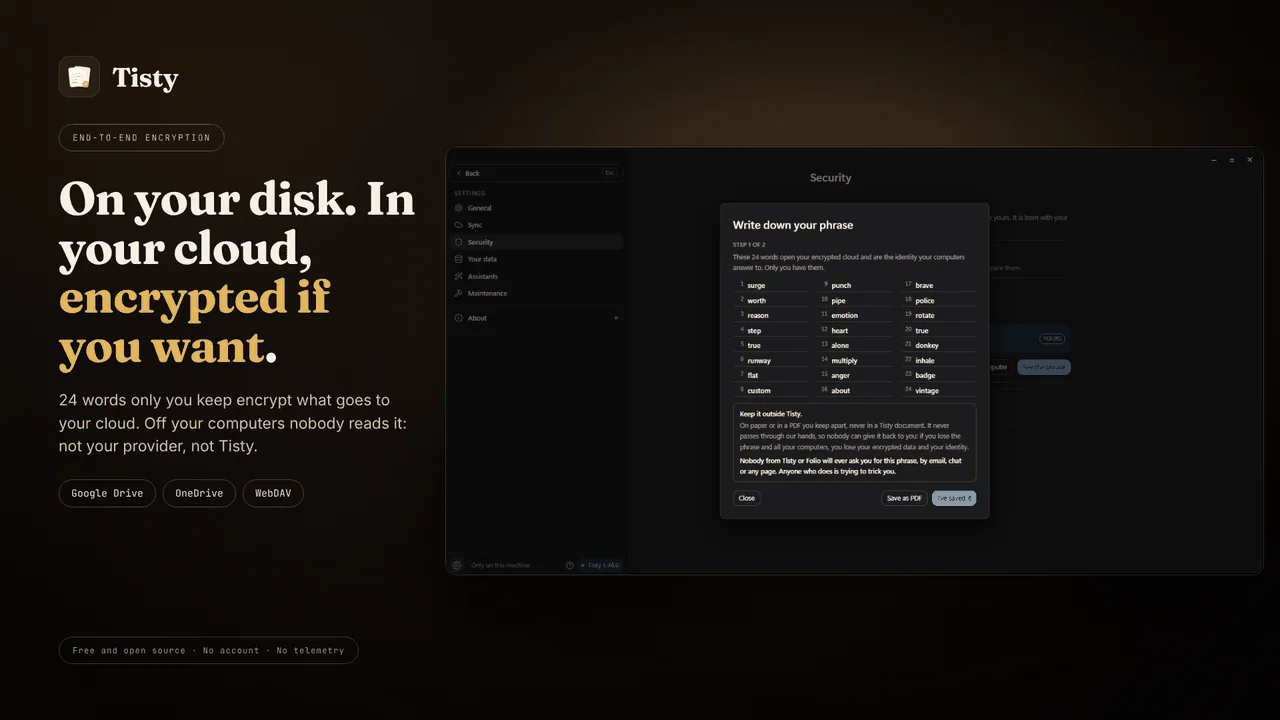
Since 1.36, what Tisty keeps in your Google Drive, your OneDrive or your WebDAV server can be encrypted with a key that comes from a 24-word phrase only you know. Whoever sees those files, your provider included, can no longer read your tasks or documents. What is on your computers does not change, and a folder kept in step by another program is never encrypted.
Turning it on
In Settings › Security, press Encrypt my cloud…. Before it starts, Tisty checks three things:
- Your phrase is written down. If you have none yet, Create my phrase makes it on this computer. Save as PDF gives you a sheet to keep outside Tisty, and three of its words, typed back, confirm you wrote it down.
- The cloud has room. While it encrypts, your cloud takes twice as much, until the old copy goes.
- Every one of your computers runs a Tisty that knows an encrypted cloud, 1.36 or later. Tisty names any computer that is behind: update it, or remove it from your computers if you no longer use it.
Then Encrypt my cloud shows the progress. You can keep working, or close Tisty and it carries on where it was. Until the last step, cancelling loses nothing: what was there stays as it was.
Once it says «Your cloud is encrypted», the old unencrypted copy stays in the cloud until you press Delete the unencrypted copy, which deletes only the files whose encrypted copy is already there. A file too big for the provider to take encrypted is left out and stays as it is.
Your other computers
One that already synced with you gets the key on its own. It waits a moment and takes the key from another of your computers that has Tisty open, and meanwhile it writes nothing unencrypted.
A new computer is let in from one that already reads the encrypted cloud:
- On the new computer, choose Let in from another computer. It shows twenty digits.
- On the other, open Settings › Security › Let a new computer in and type them.
- Back on the new computer, press It took them. While the key is on its way you see it under way; once it arrives, the new computer brings your encrypted cloud, and the bottom bar and Settings › Security say how far it came.
If you type nothing, nothing is handed over. Or, on the new computer, Type my phrase takes your 24 words: only the cloud’s key stays there, never the phrase. Type them only there, in your own Tisty: nobody from Tisty or Folio will ever ask you for them, and anyone who does is trying to trick you.
If the new computer then keeps your cloud’s history, it does not ask you about your other computers, and the one that took its digits does not ask for it again; each of your other computers asks you to confirm its code once, as with any new computer. Choose it within a week of typing the digits: after that, the one that took them asks once more.
What it does not hide
Your provider keeps earlier unencrypted versions for a while, in its history and its bin. The names and sizes of the files, when they change and how many computers you have stay visible.
Keep the phrase safe
The phrase is kept only on the computer where you made it, and See the phrase in Settings › Security shows it again there. It never passes through anybody’s hands, so nobody can give it back to you: without it or one of your computers, nobody can open your cloud, not even Tisty.
Going back
Decrypt my cloud, in the same place, copies everything back unencrypted and deletes the encrypted copy. Your other computers notice and keep syncing without you doing anything on each one. Your phrase stays yours.
Moving to another place
Changing where Tisty syncs is a move, not a switch: everything you already have has to travel. Settings › Sync › Move to another place… takes your copies between this computer alone, a folder, Google Drive, OneDrive and your WebDAV server.
- Before it starts, the window says what will happen: what comes down, what goes up, whether your Drive has room for it, and which of your other computers will follow. Tick I understand the move takes time and can’t be left halfway and press Move my copies.
- It goes in two steps. First everything that lives only in the place you leave comes to this computer, Bringing from your cloud or Bringing from the folder, because after the move Tisty no longer reads it. Then it all goes to the new place, Uploading to Google Drive or Copying to the folder, with its bar and what is left, 12 files left. When both are needed, the window shows Step 1 of 2 and Step 2 of 2.
- Pauses are said as they are: Google asked for a pause; it goes on at 14:05, No internet connection, or how many seconds until it tries again. If it stops, Carry on picks it up where it stopped. Nothing changes place until everything is there.
- Hide and keep working leaves the progress at the bottom of the sidebar. Keep Tisty open until it ends.
- When it ends, your other computers are told where you went, and each one follows when it syncs. Those that never confirmed this computer do not: open Tisty there and choose the new place yourself.
If you have Google’s desktop program, choosing its folder instead is faster and spends none of your daily allowance.
After an update
Every event carries a version, and a machine only reads what it understands. When one machine updates to a version that writes something new, the other stops syncing in both directions until it updates too. Nothing is lost and nothing lands half understood: update the machine that is behind, and the two carry on.
Since 1.34, a computer still on Tisty 1.30 to 1.33 that reaches your cloud or your folder stops and asks you to update it instead of writing over what a newer one left. Until you do, that computer does not sync, but nothing is lost: what it holds stays where it was and catches up once it is updated. A copy from a store may take a little while to receive the new version.
Something changed on one machine and is not on the other
With a folder, Tisty writes to it and reads from it, and what uploads it is your provider’s own program — Google Drive, OneDrive, iCloud, Dropbox, Syncthing. If that program is not running, Tisty keeps saving your work fine and has no way to tell that nobody is picking it up. If you connected Google Drive, OneDrive or a WebDAV server directly instead, Tisty says what is wrong on its own card: see What the card says.
Go through this in order; the first three cover almost every case.
- Is your cloud program running? Look for its icon in the menu bar, top right (macOS), or in the system tray next to the clock, hidden icons included (Windows). If its start-at-login is off, a reboot is enough to stop it. Open it and give it a few minutes.
- Is it paused or signed out? An open client is not always syncing: check in its own panel that it is not paused, that the account is still signed in, and that you have not run out of space.
- Is that folder among the ones it syncs? Many clients let you choose folders. If the one you gave Tisty fell outside that selection, everything works except the one thing that matters.
- Is the other machine on? It has to open Tisty to pick changes up. While it is off, your work waits in the folder.
- Is the other machine waiting on you? In Settings › Sync › Your computers it shows as Waiting — confirm it (see above), checking the key is the same character by character. What it wrote meanwhile stays in the folder and arrives whole.
- Check with your own eyes. Settings › Sync shows two dates: my last round (when Tisty read and wrote in the folder — it does not mean anything was uploaded) and something last arrived from another computer. If the second has been still for days and your machines are on, the problem is there. Open the folder, look for your recent files, and check with your provider — from its website, say — whether they are up there too.
If all of that is fine, Settings › Sync › Send everything again copies everything of this machine’s to the folder again without asking whether it is already there, which is what you want when a cloud client skipped a file.
Why does Tisty not warn me on its own?
Because it cannot know. With a folder, Tisty talks to no cloud: it has no account of yours, no credentials, and no idea which provider — if any — is behind the folder. It does not ask your provider’s program either, so it shows you the facts it does know instead of a verdict it cannot back.
Is anything lost meanwhile?
No. Your work is complete on the machine where you did it, and the log only appends: nothing is overwritten or dropped. As soon as the folder moves again, both machines catch up on their own, even if both were working at once. If both wrote the same part of a document, you choose which stays (see above).