Assistants (MCP)
Agents: your agents' rules, skills and memory
Agents is a folder in your Library, at the top, with a robot icon. It sits in your sidebar from day one, in grey, until you bring something in.
I use more than one AI agent, and each one reads its rules from a different file, in a different folder: CLAUDE.md, AGENTS.md, copilot-instructions.md, GEMINI.md. Changing one rule everywhere meant opening four files, and sooner or later one fell behind. The Agents folder gathers those files in Tisty, as documents, so you can read and arrange them. And if you want, Tisty writes underneath the file each agent reads.
What it is and when it helps
Agents is a folder in your Library, at the top, with a robot icon. It sits in your sidebar from day one, in grey, until you bring something in. Each document inside it is one of an agent’s files: a rule, a skill or its memory. You read it and edit it in Tisty, with its search and its earlier versions, but it does not look like one more document: it opens on its own card, which tells you who reads it, where it is written and how many backups it has, with the agent’s text just as you wrote it. If you sync it, Tisty writes the file that agent reads, byte for byte.
It helps when:
- You want to read and arrange the rules you already have. With Bring, your
CLAUDE.md, your skills and your Copilot rules come in as documents, with headings and search, instead of flat files in hidden folders. Your agents keep reading their files as they were. - You use several agents and want the same rules in all of them. With Sync, you write «Answer in English» once in Global, and it reaches Claude Code’s
CLAUDE.md, Codex’sAGENTS.md, Copilot’scopilot-instructions.mdand Gemini’s rules. - You work on more than one computer. You write the rule once, and each computer chooses whether it syncs and what it applies to its agents.
- You have skills with scripts. Each file of the skill is a document, and a script is kept in a code block that is written as is.
- You want to be able to go back. While syncing, Tisty keeps the original file before it first writes over it, and the last 20 before each overwrite.
- You want to see what your agent noted about you. The memory Claude Code writes in each project, or Gemini’s
GEMINI.md, can be brought in to read in Tisty, and Tisty never changes it.
It is not for each repository’s files: Agents handles your user’s files, the ones in your home folder, not the AGENTS.md or CLAUDE.md that lives inside a project.
Bring or sync
They are two different steps, and you can stay on the first one as long as you like.
| Bring | Sync | |
|---|---|---|
| What it does | Copies the files you tick into Tisty, as documents | From then on, what you change in Tisty reaches your agents’ files |
| Your agents’ files | Stay as they are: Tisty writes nothing into them | Tisty writes them with what your documents say, with a backup before each overwrite |
| A change made outside | Stays in the file alone: Tisty asks you to decide nothing | Tisty warns you on the document’s card and waits for you to choose |
| Your documents | Stay in Agents, and you edit them like any document | The same |
| What it needs | That this computer lets you read the files you tick | The same, once per computer |
| How it is undone | You delete or move the documents, like any other | Stop syncing: no agent file is touched and no document is deleted |
Two examples.
- Jaime uses only Claude Code and wants to read his rules and skills calmly, without anything changing in
~/.claude. He chooses Bring. His documents sit in Agents › Claude, and Claude Code keeps reading itsCLAUDE.mdas always. If he edits one of those documents, the change stays in Tisty and nowhere else. - Yisset uses Claude Code and Codex, and wants both to know her branches take the form
type/name. She chooses Bring and sync, writes that rule once in Agents › Global, and Tisty writes it at the top of herCLAUDE.mdand herAGENTS.md.
If one day Jaime wants his changes to reach Claude Code, he presses Sync and Agents starts syncing, without bringing anything again. If Yisset wants to keep everything still for a while, Stop syncing: her files stay as Tisty left them and her documents stay in Agents.
Three states in the sidebar
The sidebar tells you how Agents stands by its colour, and no word appears beside it. What waits for your decision you see on each document’s card and in Settings › Assistants › Agents folder.
| State | How it looks | One click | Its right-click |
|---|---|---|---|
| 1. Nothing brought yet | The robot and the name Agents in grey | Opens the first-time notice, Your agents, in one place | Hide from the sidebar |
| 2. Brought, not synced | The robot in grey and the name like any folder; when you hover over it, how many documents it holds, like any folder | Opens it like any folder; at the top, one quiet line: «Not synced with your agents · Sync» | Sync, Look again and Hide from the sidebar, nothing else |
| 3. Syncing | The robot in coral and the name like any folder; when you hover over it, how many documents it holds, like any folder | Opens it like any folder | Stop syncing, Look again and Hide from the sidebar, which first asks you to stop syncing |
- Coral is Agents’ own, and only while it syncs: purple belongs to diagrams, and no folder of yours can pick coral. In the Brainsty network, the documents in Agents come hidden, whether it syncs or not, so they do not cover what you write. They show when you turn Show AGENTS on in the filters: smaller than yours, in a faint coral and with fainter lines, and the legend names them AGENTS. They are never alike to anything. See Filtering.
- The state 2 line shows only on Agents, never on its subfolders. Its Sync link does the same as the one on the right-click.
- With the sidebar folded, Agents’ robot has the same colour. Open or folded, a screen reader says the state in words: «Agents — nothing brought yet» or «Agents — Not synced with your agents».
- The right-click also opens with the menu key or with
Shift+F10, with Agents selected. - The right-click on Agents itself offers only syncing, looking again and hiding, by state: no other folder action. Its subfolders, such as Agents › Claude, have a menu for agents only, told in A subfolder’s right-click. Why Agents does not move or change its name is in Agents stays at the top.
The first time
Agents is in your sidebar even if you never used it, in grey. That way you know it exists, and nothing of your agents’ is read until you say so.
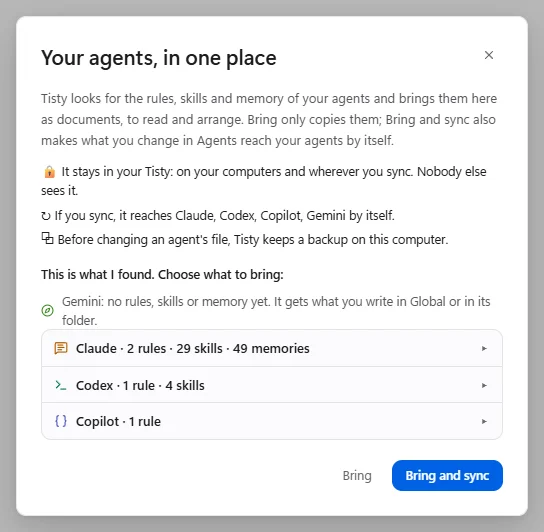
- In the sidebar, click Agents. Your agents, in one place opens, with an X at the top to close it. Tisty looked at which assistants you have on this computer and which files sit in their folders, only their names and sizes: it has not opened any of them yet.
- At the top, one line tells you the two words: «Tisty looks for the rules, skills and memory of your agents and brings them here as documents, to read and arrange. Bring only copies them; Bring and sync also makes what you change in Agents reach your agents by itself.». Below, three more:
- 🔒 «It stays in your Tisty: on your computers and wherever you sync. Nobody else sees it.»
- ↻ If you sync, whom it reaches, with the assistants it found: «If you sync, it reaches Claude, Codex, Gemini by itself.».
- ⧉ «Before changing an agent’s file, Tisty keeps a backup on this computer.»
- Below, This is what I found. Choose what to bring:, one row per assistant, with what it has to bring, such as Claude · 2 rules · 1 skill · 1 memory. Open it with a click: each rule and each memory is a row with its box, and each skill is one single row, whole, such as pr · Skill · 3 files. Hover over a row to see its full path.
- Tick what you want to bring. A skill comes in whole with its box: its
SKILL.md, its scripts and its references. Rules and skills come ticked; agent memory comes unticked, because once in Tisty it travels with your sync, so you tick it yourself if you want it. - Choose one of the two buttons:
- Bring copies what you ticked and nothing else. Your agents’ files stay as they are, and Agents is left in state 2: brought, not synced. The box says, for example, «7 documents came into Agents. Your agents’ files stay as they are until you choose Sync.». It stays greyed out until you tick something.
- Bring and sync, the highlighted one, copies what you ticked and also syncs: from now on, what you change in Agents reaches your agents’ files. Agents is left in state 3, with its coral robot, and the box says «7 documents came into Agents, and Tisty keeps them in sync from now on.».
- Tisty opens only the files you ticked and keeps them as documents. Whatever could not come in shows under These did not come in:, with the reason. Done closes the box.
Closing without choosing. The X or Esc close the box without reading or bringing anything, and Agents stays grey in the sidebar. Come back whenever you like with another click on it, or from the Agents card in Settings › Assistants › Agents folder, where Bring and Bring and sync open this same box. What comes into the list, and what does not, is in What comes into the list.
If you do not want to see it. The box has no button to hide it: right-click Agents, in grey, and Hide from the sidebar. Hiding it from the sidebar tells it.
What comes into the list
The list brings only what your assistant really reads. The rest does not show, not even greyed out.
Skills. A skill is a folder with a SKILL.md at its root. Tisty looks for it as deep as each assistant does, so a skill you keep inside a category folder, such as ~/.agents/skills/work/pr/, shows when its assistant reads it from there:
| Assistant | Skills folder | Where a skill can be |
|---|---|---|
| Claude Code | ~/.claude/skills | right inside, such as skills/pr/ |
| Codex | ~/.agents/skills, which it shares with Copilot and Gemini | up to six folders down, such as skills/work/pr/ |
| GitHub Copilot CLI | ~/.copilot/skills | right inside |
| Gemini CLI | ~/.gemini/skills | right inside |
| Cursor | ~/.cursor/skills | in any category folder |
A folder without a SKILL.md that its assistant does not read deeper is not a skill and does not show. Tisty never looks for a skill inside another: a SKILL.md deeper inside pr/ is just one more file of pr. Each skill is one row, such as pr · Skill · 3 files, with one box that brings it whole: each file of the skill becomes a document, and in the sidebar it shows as a single row, pr, with 3 files on the right. A credentials file inside a skill, such as a .pem key, still stays out.
Rules. From a rules folder, only what the assistant reads comes in:
- Claude Code: the
.mdfiles in~/.claude/rules, subfolders included. - GitHub Copilot CLI: the
.instructions.mdfiles in~/.copilot/instructions, subfolders included. A plain.mdthere does not show, because Copilot does not read it either. - A folder inside a rules folder that has its own
manifest.jsonstays out whole: it belongs to another program, not to you.
Agent memory. Only its .md files.
What never shows:
- A hidden file or folder, whose name starts with a dot, at any depth. That leaves out, for example, Claude Code’s
skills/.trash/and Codex’sskills/.system/, its system skills, which Codex rewrites itself. - Claude Code’s
skills/synced/, in any capitalization: it is the copy of the skills in your claude.ai account, which Claude Code may overwrite or delete, so it is not yours to edit.
An example. Your Claude folder holds:
~/.claude/
├── CLAUDE.md
├── rules/
│   ├── style.md
│   └── notes.txt
└── skills/
    ├── pr/
    │   ├── SKILL.md
    │   ├── scripts/open-pr.sh
    │   └── template.md
    ├── loose-notes/
    │   └── ideas.md
    ├── .trash/
    │   └── …
    └── synced/
        └── …
Claude’s row reads Claude · 2 rules · 1 skill: CLAUDE.md and rules/style.md as Rule, and pr · Skill · 3 files. notes.txt does not show, because it is not a .md; loose-notes, because it has no SKILL.md; .trash, because it is hidden, and synced, because it is the copy Claude Code keeps of your claude.ai account.
Each assistant’s row counts rules, skills and memories, not files: a ten-file skill adds one, as in Claude · 2 rules · 3 skills · 1 memory. With nothing left to bring it says Claude · nothing to bring, and if everything is already in Agents, Claude · already in Agents.
An assistant with no files yet is not left out as if it were not there: Tisty names it on a line of its own, above the list. If you installed Gemini yesterday and have not asked it to remember anything yet, you see «Gemini: no rules, skills or memory yet. It gets what you write in Global or in its folder.». Bring another file, Look again and its switch in Settings › Assistants › Agents folder say the same.
What the list says beside a file
| In the list | What it means |
|---|---|
| Rule, Skill, Agent memory | It can come in. Memory comes unticked |
| already in Agents | A document in Agents already stands for it, so it is compared instead of brought again |
| credentials, left out | Its name is a credentials file’s, such as credentials.json, auth.json, or a .pem, .key or id_rsa key. Those starting with a dot, such as .env or .credentials.json, do not even show |
| Tisty’s own | A file Tisty left or a temporary one, such as tisty.json or one ending in .tmp |
| a link, left out | It is a symbolic link: Tisty does not follow it |
| too big | Larger than 512 kB, what a document can hold |
| too many files | Tisty had already seen 2,000 files in your assistants’ folders and stopped looking |
What is greyed out cannot be ticked. Hidden files and folders, those starting with a dot, never show. Tisty also skips node_modules, and goes no deeper than eight levels.
If a file does not come in
After bringing, a ticked file may stay out:
- It looks like it holds a credential, such as a key or a token, so it stays out. Tisty checked it on this computer and found something shaped like a secret. Take the secret out of the file and try again.
- It is not text. A binary file cannot be a document.
- Its name cannot be kept as an agent document. A name with
#,:,,, quotes, square brackets or a backslash does not fit in the line that says where the file goes.
If you have no agent files yet
The box says «I found no agent files on this computer. You can still sync: Agents fills up as you write your rules.». Below it, each assistant it found with no files has its line, such as «Codex: no rules, skills or memory yet. It gets what you write in Global or in its folder.». Bring stays greyed out, since there is nothing to bring, and Bring and sync is still there: pressing it lets this computer sync and still creates the Agents folder, with Global and an empty subfolder for each assistant it found, such as Codex and Gemini. The box says «Nothing new came in. Agents syncs on this computer now: what you write there reaches its assistants.», and in the sidebar Agents is left with its coral robot. Going into it does not open the box again.
From there you have two ways:
- Write your first rule. Right-click Global or an assistant’s folder, and New document: the document already starts as a rule of that place, with its
agent:line in place, as A new document is already a rule tells. Tisty writes the file as soon as you write something in it. - Bring what shows up later. Once your agent makes its files, for example after you use it for the first time, bring them with Bring another file.
Bring another file
The first time does not have to be the only one. If you install a new assistant, make a rules file that did not exist before, or left something unticked, you bring it later:
- From the sidebar: right-click a subfolder of Agents, such as Agents › Claude, and choose Bring another file. The right-click on Agents itself does not offer it: Look again is there instead, which does the same and also ticks what is new for you. In state 1 nothing is brought yet, and a click on Agents opens the first time.
- From the Library menu: with Agents or one of its subfolders open, the + button beside the Library heading offers Bring another file, among the options to create and import.
- From the command palette: with Agents or one of its subfolders open, type «bring» and choose Bring another file, in the Create group.
- From Settings › Assistants › Agents folder: on the Agents card, the Bring another file button.
Bring another file does not change whether Agents syncs. Brought but not synced, the new file comes in as a document and your agent’s file stays as it is; while syncing, Tisty also keeps it up to date from then on.
Bring another file opens, with «These are the agent files on this computer that are not in Agents yet. Choose what to bring:» and the same list as the first time, with the same rules: a skill is a single row that comes in whole, and what is hidden or what the assistant itself maintains does not show. With one difference: nothing comes ticked, not even the rules. Tick what you want and press Bring: the button stays greyed out until you tick something. Not now closes it without bringing anything. What already has a document says already in Agents, and if nothing is left to bring, the box says «Every agent file on this computer is already in Agents.».
An example. One day you write a new rule for Claude Code by hand in your editor, ~/.claude/rules/tests.md:
# Tests

- Run the tests before every commit.- Right-click Agents › Claude and choose Bring another file.
- Open Claude’s row:
CLAUDE.mdshows dimmed, with already in Agents, andrules/tests.md, unticked, as a Rule. - Tick it and press Bring. If Agents syncs, the box says «1 document came into Agents, and Tisty keeps it in sync from now on.»; if it is brought but not synced, «1 document came into Agents. Your agents’ files stay as they are until you choose Sync.». Done closes it.
- Tests shows up in Agents › Claude, with a book icon. From now on you read it and change it in Tisty, like any rule.
If this computer has not let you read your agents’ files yet, for example because Agents came in brought from another computer, Bring another file opens the first-time box, with its three lines, what it found already ticked and its two buttons, Bring and Bring and sync.
Bring touches nothing. Neither your agents’ files nor the record Tisty keeps of what it wrote: a file you only brought is never noted as written by Tisty, so if you later take its document out of Agents, Tisty does not offer to take it away with Take the file away too?. If you later choose Sync, a file still exactly as you brought it is taken as it stands, and what joins it, such as a Global rule, is written over it with its backup first.
Look again
Look again is on the right-click of Agents itself, in state 2, brought but not synced, and in state 3, syncing. It looks again on this computer for your assistants and their files, as the first time did: if you installed a new one, it makes its subfolder, and opens Bring another file with only what is new already ticked. What is already in Agents shows dimmed with already in Agents, and agent memory comes unticked, as always. Check the boxes and press Bring.
An example. Marisol had Agents syncing with Claude and Codex. One afternoon she installs Gemini CLI, asks it to remember her dog’s name, and writes a new skill for Claude in ~/.claude/skills/report/. Right-click Agents and Look again:
- Agents › Gemini shows up in the sidebar, with its green compass, empty.
- Bring another file opens. In Claude’s row, report · Skill · 2 files comes ticked; in Gemini’s,
GEMINI.mdshows as Agent memory, unticked. - Marisol leaves the memory out and presses Bring: «2 documents came into Agents, and Tisty keeps them in sync from now on.», one for each file of the skill.
The memory Marisol left out is still there: the next time she looks again, GEMINI.md shows in the list again, unticked.
If nothing is left to bring, not even an unticked memory, the box shows no boxes to tick: it says «Nothing new found. This is what each assistant has:», and below it one line per assistant, with its icon. For example, on Lucas’s computer, which has Claude, Codex and Cursor:
- «Claude · already in Agents»
- «Codex · already in Agents»
- «Cursor: no rules, skills or memory yet. It gets what you write in Global or in its folder.»
Not now closes it.
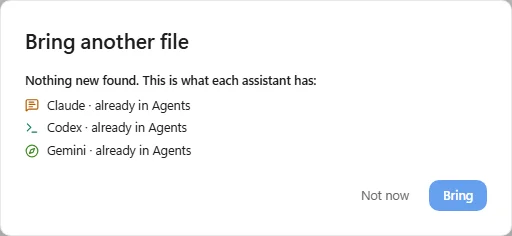
On a computer that has not given permission yet, such as a second computer where Agents came in brought, Look again opens the first-time box instead, with its names and sizes and its two buttons. It opens no file and makes no subfolder before your Bring or your Bring and sync.
A file you never brought
This happens while syncing: brought but not synced, Tisty writes no file and has nothing to ask.
An example. You have ~/.codex/AGENTS.md with your Codex rules, and the first time you left it unticked. Later you write a rule in Global, which also goes to that file. Tisty cannot tell which part is yours, so it does not write over it: it asks It exists on both sides, when you go into Agents or through Review in Settings › Assistants › Agents folder. Since it never brought that file, the box adds «Tisty has never brought this file. Bring it into Agents and it keeps what it says, with Tisty’s part added on top.» and the button Bring it into Agents.
With Bring it into Agents, the file comes in as a document in Agents › Codex, with its own words, and Tisty writes it again with your Global rule on top. What it held before stays in its backups:
# For all my agents

- Before deleting anything, ask.

# Codex rules

- Use pnpm, never npm.
Bring another file does the same: that AGENTS.md shows in its list, unticked, and once brought it ends up the same, with Global on top and its backup.
Codex’s AGENTS.override.md
Codex reads ~/.codex/AGENTS.override.md instead of AGENTS.md when it exists, so your Global rules go to that file while it exists. If you make it after the first time and have rules in Global, Tisty asks It exists on both sides with Bring it into Agents, as with any file it never brought. With no rules in Global it asks nothing: bring it with Bring another file. Once you bring it:
AGENTS.override.mdholds your Global rule on top and what you wrote below, and from then on Codex gets Global there;AGENTS.mdkeeps only your Codex rules, without Global. Codex does not read it while the override exists.
How the folder looks
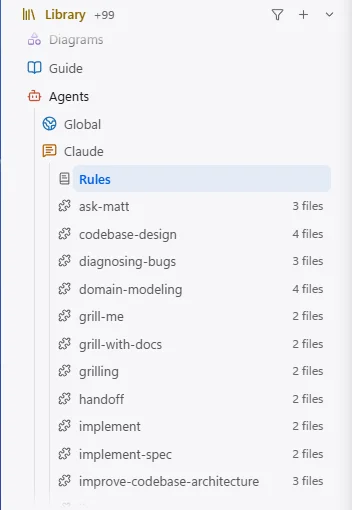
After bringing, your Library has an Agents folder with one subfolder per assistant and a Global one. In the sidebar, each document shows with its name and an icon that says what it is:
Agents
├── Global
├── Claude
│   ├── [book]     How I work
│   ├── [book]     Code style
│   ├── [piece]    pr                3 files
│   └── [brain]    MEMORY.md
├── Codex
│   └── [book]     Codex rules
└── Gemini
└── [brain] GEMINI.md- Each subfolder’s icon: Global has a blue globe, and each assistant a symbol of its own, which does not copy its logo, in the same colour as its label on the card: an orange chat bubble for Claude, a teal terminal for Codex, indigo code braces for Copilot, a green compass for Gemini and a brown pointer for Cursor. The same icons show in the first-time list and in Settings › Assistants › Agents folder. A subfolder you gave an icon of your own keeps it.
- Each document’s icon: a book for a rule, a puzzle piece for a skill and a brain for agent memory.
- The name: the document’s first heading, such as «How I work» in a
CLAUDE.mdthat starts with# How I work. A skill takes thenamein itsSKILL.md. A script, or a file with no headings, is named after the file:MEMORY.md,extract.py. - The path: hover over a row and it shows, with the assistant in front:
claude · CLAUDE.md,claude · rules/style.md. - A skill is one single row, with how many files it holds on the right, such as pr and 3 files. A click opens it and shows its files by their path inside the skill:
SKILL.md,scripts/open-pr.sh. So a 200-file skill takes one line until you open it. A skill of a single file shows like any other document.
The subfolders are there so you find things: what decides where a document goes is its agent: line, not the folder it sits in. You can move a document between subfolders or make your own inside Agents, and it keeps being written to the same file.
One subfolder for each assistant on this computer, even an empty one. Each assistant Tisty finds here has its folder in Agents: Global, Claude, Codex, Copilot, Gemini and Cursor, depending on which you have. Tisty makes it when bringing, when you look again or when a new assistant shows up, so you have somewhere to write to it even before it has any file. Making a folder touches none of your agents’ files. If you delete one of those subfolders, for example Cursor because you do not use it, Tisty does not make it again. And if two computers make it at the same time before they sync, only one remains.
The sidebar says nothing beside Agents: no word, and no count of what waits. What waits for your decision is in three places:
| Where | What you see |
|---|---|
| Each document’s card | Its standing, always, on the coloured label: Changed outside, Changed on both sides, Written by an earlier Tisty or On hold; the Proposal label, if an agent proposes a change to you; or an amber notice inside the card, when the document comes from another computer or its text waits for your approval. The table of each standing says what to do with each one |
| Settings › Assistants › Agents folder, on the Agents card | The files that ask for your decision: «1 file says something different in Tisty and in the agent.», or «1 file no longer belongs to any rule in Agents.», each with Review; and under Sync Gemini, if its line is missing |
| When you go into Agents | If Agents syncs and a file exists on both sides, no longer belongs to any rule or lost Gemini’s line, Tisty asks about it as soon as you go in, one at a time |
A subfolder’s right-click
Global, Claude, Codex and any folder inside Agents have a menu for agents only. On Agents › Claude, while Agents syncs, it offers this, and nothing else:
| Choice | What it does |
|---|---|
| New document | Makes a document in that folder that is born with its agent: line: in Claude, a Claude rule; in Global, a Global rule. See A new document is already a rule |
| Bring another file | Opens the list of your agents’ files not yet in Agents. See Bring another file |
| Pause sync with Claude | Stops writing Claude’s files on this computer, like the button of the same name on the card. While paused, it says Resume sync with Claude. See Pausing, stopping sync and emptying |
| Hide from the sidebar | Takes it out of the sidebar on this computer. If Agents syncs, it first asks you to stop syncing. See Hiding it from the sidebar |
| Delete | Asks first; its documents go to Unfiled, and Tisty asks you about the files they made up, with their backup. See Deleting a subfolder |
- Global has no pause: it belongs to no assistant, and what it holds reaches all of them. To pause one, use that assistant’s subfolder.
- The pause shows only while Agents syncs. Brought but not synced, Tisty writes no file, and there is nothing to pause. Nor does it show for an assistant not installed on this computer, even when its folder came from another one.
- A folder inside a subfolder, such as Agents › Claude › Tests, has the same menu as Claude, with Claude’s pause.
- There is no New diagram, New folder, Rename, Move to, Import or Unpack. Those are your folders’ actions; inside Agents, each folder belongs to an assistant, and its name is how Tisty knows whom it writes to.
- An archived subfolder also shows Unarchive, so it can come back.
An example. Jaime is trying new Claude rules by hand this afternoon, but wants Codex to keep getting what is in Global. He right-clicks Agents › Claude and chooses Pause sync with Claude. Codex keeps syncing; Claude stays as the last write left it. When he is done, he right-clicks again and chooses Resume sync with Claude.
The agent: line
Each document in Agents starts with its properties, and one of them says which file it is:
---
agent: claude/rule/CLAUDE.md
title: claude · CLAUDE.md
---
# How I work

- Answer in English.
- Branches shaped type/name.
The value has three parts, split by /:
- The level:
global, or one assistant:claude,codex,copilot,geminiorcursor. - The kind:
rule,skillormemory. - The name: the file’s path inside the assistant’s folder, such as
CLAUDE.md,rules/style.mdorpr/SKILL.md.
Sometimes it carries more marks, which Tisty adds only when it brings a file in, to write it back exactly as it was: crlf (lines ending the Windows way), bom (an invisible mark at the start), as-is (mixed line endings) and open-end (the file does not end in a line break). For example, agent: [copilot/rule/copilot-instructions.md, crlf, bom]. The properties guide explains the rest.
The page does not show that line: the document opens on its card.
Global or one assistant
A Global document reaches every assistant Tisty finds on this computer. One in an assistant’s folder reaches only that assistant.
A rule in Global
Write a document in Agents › Global with these properties:
---
agent: global/rule/for-all.md
title: global · for-all.md
---
# For all my agents

- Before deleting anything, ask.
- Never push changes unless I ask.
That rule is not written to a file of its own: it goes at the start of each assistant’s main file, before that assistant’s own rules. If this computer has Claude Code, Codex and Gemini, Tisty writes:
~/.claude/CLAUDE.md: the Global rule, then what your document of that file says, How I work in the example.~/.codex/AGENTS.md: the Global rule, then your document ofAGENTS.md, if you have one.~/.gemini/tisty-rules.md: the Global rule, then your documentgemini/rule/tisty-rules.md, if you have one.
This is how Claude Code’s CLAUDE.md ends up:
# For all my agents

- Before deleting anything, ask.
- Never push changes unless I ask.

# How I work

- Answer in English.
- Branches shaped type/name.
The facts box of each of those documents says so: in How I work, Read by Claude and Written to ~/.claude/CLAUDE.md, with «together with one other document» below it; in For all my agents, one row per assistant, Claude file, Codex file and Gemini file. Cursor gets no rules: its own live in its settings, not in a file.
A rule for Claude alone
Claude Code also reads each file in ~/.claude/rules. For a rule only Claude should read, write a document with agent: claude/rule/rules/tests.md, anywhere in Agents, and Tisty writes ~/.claude/rules/tests.md. Copilot does the same with its instructions folder: agent: copilot/rule/instructions/rust.instructions.md.
A name the assistant does not read is written nowhere: agent: claude/rule/notes.md leaves the card saying «No assistant on this computer reads this document yet.».
A new document is already a rule
You do not have to write the agent: line by hand. A document you make with New document inside Global or inside an assistant’s folder starts as a rule of that place: its properties already carry its agent: line, and you only write the rule.
| Where you make it | The line it starts with |
|---|---|
| Global | agent: global/rule/rule.md; the next one, rule-2.md, and so on |
| Claude | agent: claude/rule/CLAUDE.md while no document has it; then claude/rule/rules/rule.md, rules/rule-2.md… |
| Codex | agent: codex/rule/AGENTS.md while no document has it |
| Copilot | agent: copilot/rule/copilot-instructions.md while no document has it; then copilot/rule/instructions/rule.instructions.md, rule-2.instructions.md… |
| Gemini | agent: gemini/rule/tisty-rules.md while no document has it |
| Cursor, Agents itself or a folder of your own inside Agents | None: it is a plain document |
Codex and Gemini read a single rules file. Once a document holds it, New document in their folder makes no other: it opens that same document, so you add what is new there. What is for all of them goes in Global.
Two Global rules with the same name. If at home and at work you made a rule in Global before the two computers synced, both were born as rule.md. Once they meet, Tisty leaves the name to the older one and gives the other the next free one, rule-2.md, without touching its words: both reach your agents. On the computer where the other one came from outside, it waits for its Apply here like any document from another computer. Cursor has no rules file of its own, so a new document in its folder also starts plain; bring its skills with Bring another file.
An example. Marisol has Agents syncing and has just installed Gemini CLI. Agents › Gemini shows up in the sidebar, with its green compass, empty.
- Right-click Gemini and New document. The document opens on its card, with the labels Rule and Gemini, still with no text.
- She presses Edit, writes «Answer in Spanish.» and presses Done.
- Tisty writes
~/.gemini/tisty-rules.mdwith that line, with whatever you have in Global in front of it, and adds the line@tisty-rules.mdat the end of~/.gemini/GEMINI.md, so Gemini reads it. The card turns In sync, and in the sidebar the document is calledtisty-rules.md, because it has no heading; if she writes# Gemini rulesat the top, it is called that.
Its properties, which the card does not show, ended up like this:
---
agent: gemini/rule/tisty-rules.md
title: gemini · tisty-rules.md
---
Answer in Spanish.
If she later presses New document in Gemini again, that same document opens, and Marisol adds the new rule there.
A skill in Global
A skill is a folder with a SKILL.md and, sometimes, scripts. Each file is a document, with the same level and the same skill folder:
agent: global/skill/pdf/SKILL.md
agent: global/skill/pdf/scripts/extract.py
A Global skill is written once where several read it at a time:
- in
~/.claude/skills/pdf/, for Claude Code; - in
~/.cursor/skills/pdf/, for Cursor; - in
~/.agents/skills/pdf/, one copy that Codex, Copilot and Gemini all read.
The SKILL.md’s own properties stay out of the text: its name is the card’s name, its description sits under it in a quiet line, and the rest, such as disable-model-invocation: true, go in small rows of the facts box. The script is kept in a code block and written as is, without the block: the card’s Format row names the script’s kind, such as SH · LF, and a Markdown document says Markdown · LF.
Which file each assistant reads
~ is your user folder: C:\Users\you on Windows and /Users/you on macOS. Tisty only works with an assistant whose folder exists on this computer.
| Assistant | Its folder | Moved by | Rules Tisty writes | Skills | Memory, read only |
|---|---|---|---|---|---|
| Claude Code | ~/.claude | CLAUDE_CONFIG_DIR | CLAUDE.md and what goes in rules/ | skills/ in its folder | projects/*/memory/, each project’s memory |
| Codex | ~/.codex | CODEX_HOME | AGENTS.md, and Global in AGENTS.override.md when that file exists | ~/.agents/skills/ | — |
| GitHub Copilot CLI | ~/.copilot | COPILOT_HOME | copilot-instructions.md and what goes in instructions/ | skills/ in its folder; Global in ~/.agents/skills/ | — |
| Gemini CLI | ~/.gemini | GEMINI_CLI_HOME, the folder that holds .gemini | tisty-rules.md, and the line @tisty-rules.md in GEMINI.md | skills/ in its folder; Global in ~/.agents/skills/ | GEMINI.md |
| Cursor | ~/.cursor | — | None: its rules live in its settings | skills/ in its folder | — |
What Tisty does with each one:
- Claude Code. It brings in
CLAUDE.md, each file inrules/, each skill and, if you tick it, each project’s memory: only thememoryfolder, never the saved conversations. It writesCLAUDE.md,rules/and the skills. - Codex. Codex reads
AGENTS.override.mdinstead ofAGENTS.mdwhen the first one exists, so your Global rules go to that file while it exists. If you make it after the first time, bring it in so Global goes there without writing over yours. Its skills go to~/.agents/skills, whichCODEX_HOMEdoes not move. - GitHub Copilot CLI. It brings in and writes
copilot-instructions.mdand each file ininstructions/, such asrust.instructions.md. - Gemini CLI. Gemini writes its own
GEMINI.mdwhen you ask it to remember something, so that file is Gemini’s: Tisty can bring it in as memory and never writes over it. Your rules go to a separate file,~/.gemini/tisty-rules.md, and Tisty adds one single line at the end ofGEMINI.md,@tisty-rules.md, so Gemini reads it. It touches nothing else in that file, and if the line is already there it does not add it again. If you later delete it, Tisty does not put it back: Gemini stays paused until you decide. - Cursor. Skills only, its own or Global ones.
The variables that move a folder are read from the environment Tisty started with. If you use CLAUDE_CONFIG_DIR to keep Claude Code somewhere else, set it as a user variable and open Tisty again, so it sees it.
The card of an agent document
A document in Agents does not look like one more document. It opens for reading, on a single card: at the top, what it is and where it goes; in the middle, the agent’s text; at the foot, what you can do. There is no column beside it: everything useful is on the card.
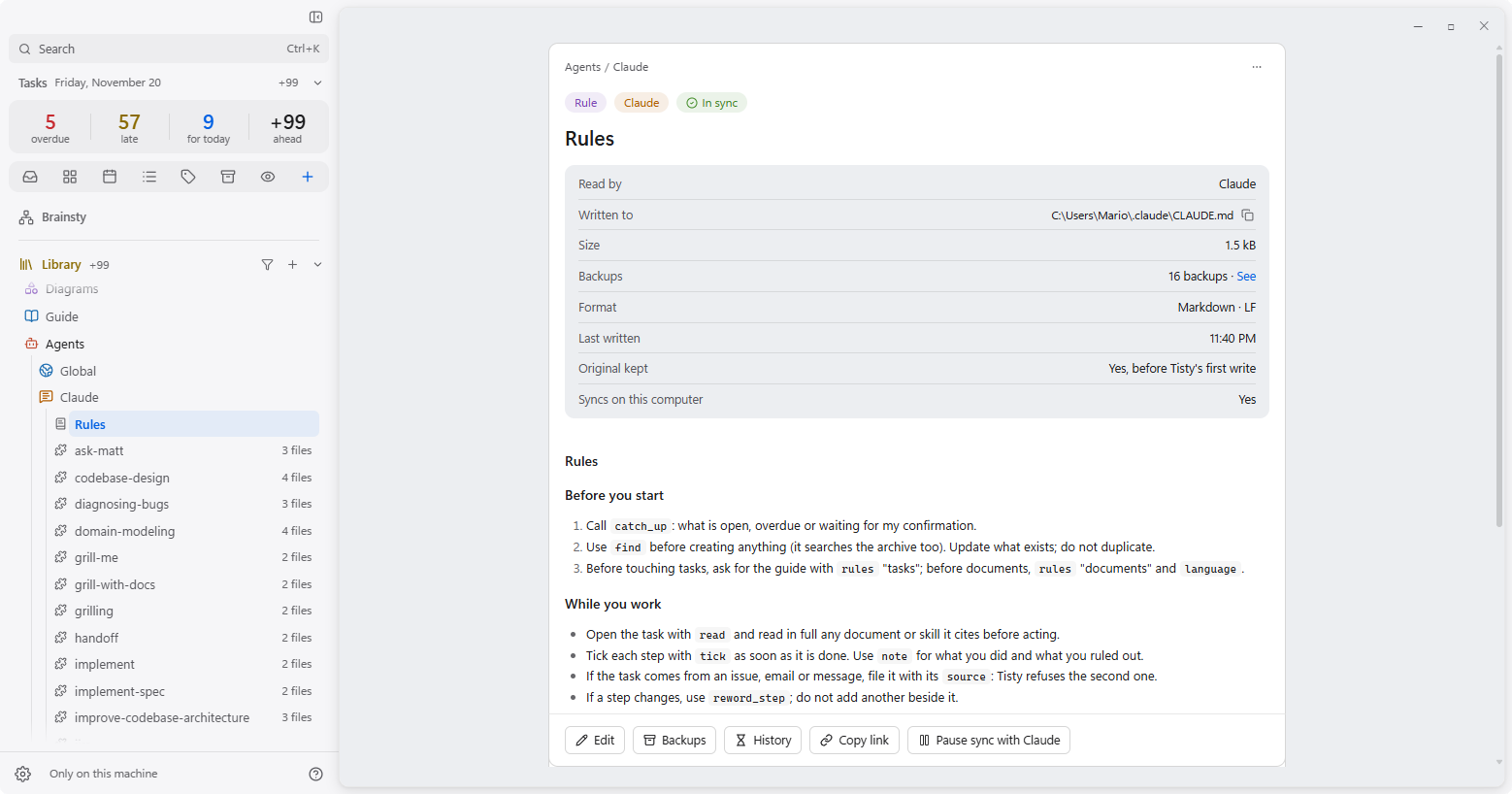
At the very top, the folder path: «Agents / Claude». A click on a folder opens it.
The heading:
- The labels: the kind (Rule, Skill or Agent memory), the level (Global or the assistant) and the standing, in its colour.
- The name, the same as in the sidebar. On a skill, its
descriptionsits under it, in a quiet line.
The file’s facts box, the only place they show:
| Row | What it says | Example |
|---|---|---|
| Read by | Which assistants on this computer read the file | Claude, Codex |
| Written to | The file’s full path, with a button to copy it. A Global document has one per assistant: Claude file, Codex file. Under it, when the file is put together with other documents, «together with one other document» | ~/.claude/CLAUDE.md |
| Size | How much the file the assistant reads weighs, whole, even when several documents make it | 12.7 kB |
| Backups | How many this computer keeps, and See to open them | 3 backups · See, or None yet |
| Format | Markdown, or the script’s kind; how its lines end, and the marks it keeps | Markdown · LF, or PY · CRLF · BOM |
| Last written | When the file last changed | today, 19:37 |
| Original kept | Whether backup #1 is there, the file as it was before Tisty touched it | Yes, before Tisty’s first write |
| Syncs on this computer | Whether Tisty keeps it up to date here | Yes; Yes, except Codex (paused); Tisty only reads it; No, Agents does not sync; No: it waits for «Apply here»; No: its text waits for your approval. With a proposal waiting, it adds «an agent’s change waits for your approval» |
| Shared | Only when the document has a live shared link: whether it can be read or edited, and See shows the links with their copy button and the usual actions, such as Stop sharing. See Sharing | Read only · See |
| The file’s properties | The other keys of its heading, in small key and value rows. When there are too many, or they are too long to read as fields, they show as written | disable-model-invocation true; applyTo **/*.rs |
Codex’s cap. Codex reads its AGENTS.md up to 32 KiB and leaves the rest unread. When the file nears that cap, the Size row says so in amber: «29 kB · close to the 32 KiB Codex reads». Past it, it says so in red: «33.8 kB · past the 32 KiB Codex reads: it leaves the rest unread». It is a good moment to move long rules into a skill.
The agent’s text, inside the same card, with no separate sheet. It is what you wrote, as is, with no sections or template imposed: Tisty draws it with compact headings, across the whole width of the card, and never turns its first line into a title. The file’s heading is not repeated there, since the facts box already has it. What your agent reads does not change: the file stays the same, byte for byte.
The buttons, at the foot, held at the bottom while the whole card scrolls with its text:
- Edit opens Tisty’s editor on the text, heading included, with the editor’s usual bar for headings and lists, and Done closes it again.
- Backups, when the document is written to a single file and that file has any. It opens the same list as See in the facts box. A Global document, written to several files, does not have it at the foot: each file’s backups open with See, on its row.
- History: the document’s earlier versions, not the file’s. Earlier versions tells it. The comparison with what is Approved reads from there: if you empty the history, or the approved version passes the limit, the card asks you to read the whole text before approving.
- History opens the document’s earlier versions.
- Copy link copies its link.
- Pause sync with Claude, when the document is written to a single file. A Global one has a button per assistant: Pause Claude, Pause Codex…
A memory document has no Edit: the agent writes it, and the card says «The agent writes this file itself: Tisty shows it and brings it in, and never writes over it.».
An example. You open Codex’s Working hours rule, which goes into ~/.codex/AGENTS.md together with your Global rule. At the top you see «Agents / Codex» and the labels Rule, Codex and In sync. In the box, «Written to ~/.codex/AGENTS.md», with «together with one other document» under it, and «Size 29 kB · close to the 32 KiB Codex reads» in amber. You read the text, decide to move the long part into a skill, and press Edit at the foot.
Each standing
| Standing | What it means | What to do |
|---|---|---|
| In sync | The file says what the document says | Nothing |
| About to be written | You changed the document and Tisty writes it in a moment | Nothing |
| Changed outside | Someone changed the file outside Tisty, or deleted it | Choose: bring or overwrite |
| Changed on both sides | Both the file and the document changed since the last write | Choose which to keep |
| Written by an earlier Tisty | An earlier version of Tisty wrote the file without noting which documents it came from, and today it does not say what they say | See the file, then Overwrite with Tisty if you keep the document |
| On hold | One of the documents that make up this file changed without your approval, or left Agents by an agent’s hand, so the file stays as it was. The card names that document | Approve that document, or put it back and take it out yourself |
| Paused | You paused sync for that assistant, or Agents does not sync on this computer; then the card adds «The Agents folder does not sync with your agents. Choose Sync in the sidebar or in Settings › Assistants.». For Gemini, also when the line @tisty-rules.md that Tisty had put in GEMINI.md is missing | Resume whenever you like, or Sync the folder; for Gemini, Put the line back |
| Not allowed on this computer | This computer has not let you read your agents’ files yet, for example because Agents came in brought from another computer | Sync, in the sidebar or in Settings › Assistants › Agents folder, and choose in the first-time box |
| Nothing to write | The document is empty, and Tisty never empties an agent’s file | Write something, or take the document out of Agents |
| The file is a link | The file, or a folder on its way, is a symbolic link; writing it would replace the link | Swap the link for the real file |
| The code block is broken | The block that holds a script is no longer whole | Mend the block in the document |
| Cannot be read | The file exists, but Tisty could not read it | Check its permissions |
Two more notices can show under the facts box:
- «No assistant on this computer reads this document yet.» The assistant is not on this computer, or the name is not a file that assistant reads.
- «Another document in Agents already writes this file, so this one is left out.» Two documents carry the same
agent:line: only one is written.
And if the document is not applied on this computer yet, an amber notice says why, with the button that settles it: On several computers tells it.
A change made outside: bring it in or overwrite
You can keep editing your agents’ files in your editor, or let the agent change them. Tisty never writes over those changes. This happens while syncing: brought but not synced, Tisty neither writes those files nor asks you to decide anything, and what you change there stays there.
An example. You open ~/.claude/CLAUDE.md in your editor and add «- Run the tests before every commit.». If Agents syncs, the next time Tisty looks (on start, when you come back to the window, or when you open the document), the card of How I work, the document of that CLAUDE.md, says Changed outside, with a notice:
- See the file shows what the file holds now.
- Bring the change in writes into the document what the file says. What the document said before stays in its earlier versions. If someone changed the document after the card was drawn, Tisty does not write over it: it asks you to read it again and choose again.
- Overwrite with Tisty asks «Write this document over
~/.claude/CLAUDE.md? What the file holds now is kept as a backup.» and, if you say yes, writes the file again from the document.
Until you choose, Tisty does not write that file, even if you change the document.
Bring the change in only shows when the change can be traced to this document: the document belongs to that same assistant, not to Global, and you are not editing it. If CLAUDE.md is put together from a Global rule and your Claude document, and the change falls in the Global part, only Overwrite with Tisty is left: copy into Global by hand what you want to keep, then overwrite.
If the file was deleted, the card says Changed outside without See the file: Overwrite with Tisty makes it again.
Changed on both sides
If both the file and the document changed, the card says Changed on both sides. When the document is the only one that makes up that file, Keep the file’s version shows, which asks «Make this document read as … does now? What it says now stays in its history.»; otherwise only Overwrite with Tisty.
The same can happen the first time you sync, when you already had a document in Agents for a file that changed in between. Then It exists on both sides opens, with the lines that differ: in red, with −, what is In Tisty; in green, with +, what is In the file. You choose Keep Tisty’s, Keep the file or Decide later, and what you do not keep is still kept: the file in its backups, the document in its earlier versions. If the file is made of several documents, you can only keep Tisty’s or decide later. If Tisty never brought that file, the box adds Bring it into Agents, as A file you never brought tells. From Settings › Assistants › Agents folder, «1 file says something different in Tisty and in the agent.» and Review bring you back to that box.
Backups
Before writing over an agent’s file, Tisty keeps what it held. Backups live on this computer, in data/agents/ inside Tisty’s folder, never in your agents’ folders, and they do not travel with sync or parcels.
- Backup #1 is the original: the file as it was before Tisty first wrote over it. That one is never removed.
- Then, the last 20. When the 21st comes, the oldest one after the original goes.
- Taking a file away leaves one too. If you take away the file of a rule you took out, its backups stay on this computer, and if a rule writes that same path again, they show in its Backups.
So a file Tisty wrote over many times keeps up to 21: the original and the last 20. The box says «The last 20 are kept.», and #1 stays on top of them.
To see them, press Backups at the foot of the card, or See on the Backups row of the facts box, beside «3 backups»:
- See shows the whole backup.
- Restore asks «Put this backup back in …? What the file holds now is kept as a backup.» and writes it into the file.
A restored backup does not change your document. The file says again what the backup said, and the card turns to Changed outside: you choose Bring the change in, so the document says the same, or Overwrite with Tisty, if you changed your mind. That way you never lose either side.
The document’s earlier versions, on the other hand, are those of any document: they are in its history.
Pausing, stopping sync and emptying
Pausing one assistant. While Agents syncs, the usual place is Settings › Assistants › Agents folder: on the Agents card, turn off the Sync Claude switch, which shows only while the folder syncs. Also in the sidebar: right-click Agents › Claude and choose Pause sync with Claude; while paused, the same menu says Resume sync with Claude. Also from a document’s card, with the buttons at its foot: Pause sync with Claude, on a document written to a single file, or one button per assistant, Pause Claude, Pause Codex…, on a Global one. Paused, Tisty neither opens nor writes that assistant’s files: they stay as the last write left them, and you keep editing your documents. Resume sync with Claude writes what you changed, except a file that changed outside in the meantime, which stays marked for you to decide.
Stopping sync for the whole folder. Right-click Agents and choose Stop syncing, or the Stop syncing button on its card in Settings › Assistants › Agents folder. This happens, and nothing more:
- No agent file is touched. Your agents keep reading their files just as Tisty left them, and Tisty stops writing them and asking you to decide when they change outside.
- No document is deleted. They stay in Agents, and you read and edit them as always; what you change stays in Tisty.
- Agents goes to state 2. Its robot turns grey again and, when you open it, «Not synced with your agents · Sync» shows at the top. Each document’s card says «The Agents folder does not sync with your agents. Choose Sync in the sidebar or in Settings › Assistants.», and its facts box, under Syncs on this computer, «No, Agents does not sync».
Syncing again. With Agents in state 2, any of these three does the same: the Sync link in the line at the top, Sync on its right-click, or Sync on its card in Settings › Assistants › Agents folder. If this computer had already let you read your agents’ files, for example because you chose Bring or Stop syncing right here, it syncs at once, without the first-time box. If it never did, like a second computer, the first-time box opens first.
When it syncs, Tisty writes what you changed in your documents in the meantime, with its backup first, except a file that changed outside, which stays marked for you to decide. What it finds different on both sides, or no longer belonging to any rule, it asks about right then.
The first time you sync something you had only brought, a file still exactly as you brought it is taken as it stands: nothing is asked about it. If something joins it, such as a Global rule that goes at the top of your CLAUDE.md, Tisty writes it over the file, with its backup first. A file that changed since you brought it, on the other hand, is not written over: It exists on both sides opens and you choose.
An example. Lucas wants to try some new rules by hand in his CLAUDE.md for a week, without Tisty touching them. He chooses Stop syncing. He edits the file in his editor and, meanwhile, keeps arranging his documents in Agents. At the end of the week he presses Sync: the card of How I work says Changed outside, and Lucas chooses Bring the change in to keep what he tried, or Overwrite with Tisty to go back to what his documents say.
Pausing, syncing and the permission belong to this computer: stopping sync here changes nothing on your other computers.
Gemini paused
While syncing, Tisty puts the line @tisty-rules.md in your GEMINI.md once. If you later delete it, or delete GEMINI.md altogether, Tisty takes that as your decision and does not put it back: Gemini stays Paused, stops getting your rules, and Tisty stops writing tisty-rules.md. Only a line Tisty put there counts: if it never put it there, for example because you had no rules for Gemini yet, its absence does not pause Gemini. You see it in three places:
- On the card of each rule Gemini reads: the Paused label and «Gemini does not read this rule: the line @tisty-rules.md is missing from GEMINI.md, and Tisty does not put it back by itself.», with the Put the line back button.
- In Settings › Assistants › Agents folder, under Sync Gemini: «Paused: the line @tisty-rules.md is missing from GEMINI.md.», with Put the line back.
- When you go into Agents, the box Tisty’s line is missing: «The line @tisty-rules.md is no longer in GEMINI.md, so Gemini does not read your rules. Tisty does not put it back by itself: Gemini stays paused until you do.», with Leave it paused and Put the line back.
Put the line back adds the line again at the end of GEMINI.md, touching nothing else, and Tisty writes your rules to tisty-rules.md again. Until you do, the card and the Settings card keep saying so.
Taking a rule and its file out
While syncing, Tisty stops writing a document when you take it out of Agents: when you delete it, archive it or move it out, when you change its agent: line to another file’s, and when you go back to an earlier version that had no card, or another one.
- If the file was put together from several documents, like
CLAUDE.mdwith a Global rule, Tisty writes it again without that part, keeping a backup first. - If it was the only one, no rule writes that file any more, but it is still on disk and your agent keeps reading it. So about a second later, Tisty asks what to do with it.
An example. You had the rule Tests, from ~/.claude/rules/tests.md, and no longer want it. You delete it, and Take the file away too? opens: «No rule in Agents writes this Claude file any more, but it is still on disk and Claude keeps reading it.», with the path below and «If you take it away, a backup stays on this computer.».
- Take the file away keeps a backup and deletes it: Claude stops reading that rule. If it was the last file in a skill’s folder, that folder goes with it; the assistant’s own folders, such as
rules, stay. - Leave it leaves it where it is, and Tisty stops answering for it: it neither writes it nor asks again. If one day you want it back in Agents, it shows in Bring another file.
If the file changed after Tisty wrote it, for example because you edited it by hand, the box adds «It changed after Tisty last wrote it.». The backup keeps the file as it is now, with that change.
If you take away tisty-rules.md, Gemini’s rules file, Tisty also takes the line @tisty-rules.md out of GEMINI.md, and nothing else.
Until you answer, the Agents card in Settings › Assistants › Agents folder says «1 file no longer belongs to any rule in Agents.», with Review to come back to the question.
Tisty does not ask, and leaves the file as it is:
- about agent memory, which the agent writes itself: neither each Claude Code project’s memory nor Gemini’s
GEMINI.md; - about a file of an assistant you paused, nor about any while Agents does not sync: brought but not synced, taking a document out touches no file;
- about a file you only brought and Tisty never wrote: Bring does not note it as written by Tisty, so offering to take it away is not Tisty’s to do;
- about a file whose document waits for your approval;
- about a file that no longer exists.
Your other computers do the same: when the deleted rule reaches them through sync, each one asks about its own file the next time Tisty looks, and the backup stays on that computer.
Deleting a subfolder
Right-click a subfolder of Agents, such as Agents › Claude › Tests, and choose Delete. Tisty first asks «Delete «Tests»? Its documents go to Unfiled and its subfolders move up a level. Nothing is lost, but this cannot be undone.». With your yes:
- Its documents go to Unfiled. As they leave Agents, Tisty stops writing them.
- About a second later, Tisty asks you about each file they made up, just as in Taking a rule and its file out: Take the file away keeps a backup on this computer and deletes it; Leave it leaves it where it is.
- A file that a Global rule also makes up, such as
CLAUDE.md, is not asked about: Tisty writes it again without that part, with its backup first. - The folder does not come back by itself: Tisty never makes again a folder of Agents you deleted.
As when you delete a rule, it does not ask about a paused assistant, nor while Agents does not sync: Tisty was not writing any file then.
An example. Marisol kept her testing rules in a folder of her own, Agents › Claude › Tests, and no longer wants them. She right-clicks Tests and chooses Delete; a second later, Tisty asks Take the file away too? about ~/.claude/rules/tests.md. She chooses Take the file away: the backup stays on this computer, Claude stops reading those rules, and its documents stay in Unfiled, in case she wants them back one day.
Emptying Agents
If you take every document out of Agents while Tisty is open and the folder syncs, it first asks about the files its last rules wrote, one by one, as in Taking a rule and its file out. Once you answer the last one, the Agents folder and its subfolders leave Tisty, and the files you chose to leave stay as they were. Brought but not synced, there is nothing to ask: Tisty wrote no file, and the folder goes as soon as the last document leaves.
Only an Agents that held documents and that you emptied with the window open goes. An Agents empty some other way stays: one made with Bring and sync without finding any files, or one that was already empty when Tisty opened.
Emptied, Agents goes back to the sidebar as at the start, in state 1: the robot and the name in grey. If you want it again, a click on it opens the first-time box again, with the rules and skills it finds already ticked, the ones you left included, and memory unticked, as always.
Hiding it from the sidebar
If you do not use Agents and do not want to see it in the sidebar, not even in grey, hide it. It is never hidden and syncing, so it never writes files you do not see.
- Right-click Agents and choose Hide from the sidebar, in any of its three states. Hide on the Agents card in Settings › Assistants › Agents folder works too.
- If Agents syncs, it first warns: «To hide Agents, first stop syncing. Your agent files are not touched.», with Stop syncing and hide and Cancel.
- Stop syncing and hide does both, in that order: Agents goes to state 2 and leaves the sidebar. Cancel leaves it as it was, in sight and syncing. If Tisty cannot tell whether Agents syncs, it warns all the same.
Agents leaves the sidebar on this computer without a trace, and sits in Settings › Look and window › Hidden folders, beside any other folder you hid: see Hiding a folder from the sidebar. Its card in Settings › Assistants › Agents folder says «Hidden from the sidebar on this computer, and not synced: it writes no agent file.», with Show again.
- Show again, in Hidden folders or on the card, puts it back in the sidebar in the state it had: in grey, nothing brought or brought but not synced.
- Sync, on the card of a brought and hidden Agents, syncs it and shows it again too: while syncing, Agents always shows.
Hidden, Agents does not sync. It writes none of your agents’ files, and nothing from those files waits for your decision. Your documents are still there: search and Move to find them, and if an agent proposes a change, the proposal stays on its document’s card until you approve or discard it.
If in the earlier version you had hidden it while it wrote your agents’ files, you now find it in the sidebar again, syncing. From there, if you would rather not see it, Stop syncing and Hide from the sidebar.
Its subfolders follow the same rule. Hide from the sidebar is always on the right-click of Global, Claude or any folder inside Agents. While Agents syncs, it goes through the same warning, and Stop syncing and hide stops syncing the whole of Agents before hiding that subfolder: what it holds should not keep being written out of your sight. And if a hidden subfolder starts syncing again, for example with Sync on the card, it comes back to the sidebar by itself.
Agents stays at the top
Tisty knows the folder because it sits at the top, on the first level of your Library and not inside another folder, carries its robot icon and keeps the name AGENTS. In the window you see it as Agents, or Agentes with Tisty in Spanish, but inside it is still called AGENTS: that way earlier versions of Tisty on your other computers and the assistants that read it through MCP find it.
That is why Agents cannot be put inside another folder, renamed, given another icon or archived, and while it holds anything, it cannot be deleted either. That holds whether you try it from the window, an agent asks for it through MCP or it arrives from another of your computers: Tisty does not do it, and your rules keep reaching your agents as before. If you try it from the window, for example by dragging it into Work, Tisty tells you «Agents stays at the top, with its name and its robot, so it keeps guarding your agents’ rules. Its color and its place among your folders are yours to change».
What is yours: its colour and its order among your folders. To make it stop writing your agents’ files, the way is Stop syncing; to stop seeing it, Hide from the sidebar; and to make it go, empty it.
The Agents card in Settings › Assistants › Agents folder
The Agents card uses the same words and does the same as the sidebar. At the top, always, «Your agents’ rules, skills and memory as Tisty documents. Bring copies them here; Sync also writes what you change to the file each agent reads.». Below, by state:
| State | What it says | Its buttons |
|---|---|---|
| 1. Nothing brought yet | Which assistants Tisty saw, such as «I found Claude and Codex on this computer.», or «I found no assistant on this computer.», and «I only checked whether their folders exist; I read nothing inside them.» | Bring and Bring and sync, which both open the first-time box, and Hide |
| 2. Brought, not synced | «Not synced with your agents» | Sync; Bring another file, once this computer has let you read your agents’ files; and Hide |
| 3. Syncing | What waits for your decision, such as «1 file says something different in Tisty and in the agent.», with Review | Bring another file, Stop syncing and Hide, and below them one switch per assistant: Sync Claude, Sync Codex… |
With Agents syncing and one assistant not synced, its switch says «Not synced: its files stay as they are, and nothing in Tisty is deleted.». An assistant that syncs but has no file yet says so under its switch: «Gemini: no rules, skills or memory yet. It gets what you write in Global or in its folder.». If Tisty finds no assistant on this computer, the card says «No agents found on this computer.». Hide shows in all three states while it is not hidden already; while syncing, it first asks you to stop syncing, with the same warning as the sidebar.
If you come from the earlier version
In the earlier version, the folder showed in capitals in the sidebar and, while it did not write your agents’ files, looked dimmed, in grey, with a word beside it. When you update you have nothing to do:
| How you saw it | How you find it |
|---|---|
| In its colour, writing your agents’ files | In state 3, syncing, with its coral robot. It keeps writing the same files |
| Dimmed, with documents | In state 2, brought, not synced. None of your agents’ files changed |
| Dimmed, with no documents and no folder | In state 1, nothing brought yet, in grey |
| Hidden, writing no files | Still hidden, in Settings › Look and window › Hidden folders |
| Hidden while it wrote files | Back in the sidebar, syncing |
From now on, the first step is Bring or Bring and sync, even when you tick nothing; with the folder already brought, Sync; and to stop it, Stop syncing, on its right-click or on its card. Your documents, their earlier versions and each file’s backups stay as they were.
On several computers
If you use Tisty on more than one computer, say the one at home and the one at work, your documents in Agents travel with your sync like any other. But each computer chooses whether it syncs and what it applies to its agents: home syncing does not make work sync, and a document that comes from another computer is written to no file until you say so, on that computer and from Tisty’s window.
A second computer, step by step
An example. On the home computer you chose Bring and sync, brought in your CLAUDE.md and wrote the rule «For all my agents» in Agents › Global. There they applied by themselves: you brought them and wrote them, on that computer. Now you install Tisty on the work computer and sync:
- In the sidebar, Agents arrives in state 2, brought but not synced: the grey robot, the name like any folder and its documents. Your documents already travelled, but this computer does not sync yet and has read nothing of its agents’. Open it and read them right away; at the top it says «Not synced with your agents · Sync».
- Press Sync, in that line, on the right-click or on the Agents card in Settings › Assistants › Agents folder. Since this computer never let you read its agents’ files, the first-time box opens first, with this computer’s files. Those that already have a document say already in Agents, and if everything it found is already there, the box says «Everything I found is already in Agents. Sync this computer to keep it up to date:».
- Tick what you want to bring from this computer, such as its projects’ memory, and press Bring and sync. Agents goes to state 3, with its coral robot. If you choose Bring instead, what you ticked comes in and this computer still does not sync.
- Open For all my agents. Its facts box has no Written to row yet, and below it, inside the card, an amber notice says «This document comes from another computer. Apply it to the agents on this one?», with two buttons:
- Apply here writes it to the files of this computer’s assistants, with its backup first, as always. If a file on this computer already said something else, Tisty does not write over it: the card stays at Changed on both sides and you choose.
- Not on this computer leaves it out here. The card says «You chose not to apply it on this computer.», and Apply here stays at hand in case you change your mind.
- Do the same with How I work, your
CLAUDE.md. The facts box of each one says, under Syncs on this computer, «No: it waits for «Apply here»» until you choose, and «Yes» after.
What you choose holds for that document on that computer, and it stays:
- A document you already apply updates by itself. If tomorrow you change «For all my agents» at home, work writes it as soon as it arrives, without asking again.
- What you write or bring in on one computer is applied on that computer with no click. Only what comes from another one waits.
- Only what this computer would read waits. A Codex document asks nothing on a computer without Codex.
- Once applied, the card offers no way back. For one assistant on this computer to stop receiving it, pause that assistant here, or stop syncing Agents on this computer; for no computer to receive it, take it out of Agents.
Approving on another computer is not applying
Approving changes the words; Apply here decides whether a computer writes the file. They are two separate things, and on a computer where a document waits, only the second writes it.
An example. At work, «For all my agents» still waits for your Apply here. Meanwhile Claude Code proposes a change to it, and since you are at work, you approve it right there:
- Approve the change asks «Approve this change? It is written to the document, and reaches your agents’ files on each computer where Agents syncs and you applied it.». With your yes, the document says the new words on all your computers.
- At home, which already applied it, Tisty writes the change to its files as always, with its backup first.
- At work nothing is written yet. The card’s amber notice turns into «You approved its words on this computer, but applying it here is a separate choice. Apply it to the agents on this one?», and Apply here and Not on this computer stay. The facts box still says «No: it waits for «Apply here»».
- Press Apply here when you want work to receive it.
The same goes for Approve this text and for going back to an earlier version from the document’s history: the words change on all your computers, and a computer where the document waited keeps waiting. What you wrote or brought in on one computer is applied on that computer with no click, as always.
Two Agents folders that join by themselves
If two computers made Agents before they synced with each other, for instance because you installed Tisty at work without connecting sync yet and chose Bring and sync on both, two Agents folders show in the sidebar for a moment once they meet.
Tisty joins them by itself, without asking:
- The oldest stays. The same one on all your computers, even if both join at once.
- Subfolders come together by name. What was in the other computer’s Global goes into your Global, what was in Claude into your Claude, and so on. A subfolder only the other had, such as Gemini, moves over whole.
- Documents move into the folder that stays, with their words, their approval and their history: no approval is lost. The folder left empty is deleted.
- None of your agents’ files changes because of the join, and Tisty asks «Take the file away too?» about none of them. What already applied on a computer keeps applying there.
- What comes from the other computer waits for its Apply here, like any document from another computer. If both brought their
CLAUDE.md, you see both documents in Claude: yours keeps being written and the other waits; choose which one you keep and take the other out. - An archived folder moves over whole and stays archived: what it held is not written again.
- What arrives late comes in too. If on the other computer you wrote a document in its Global right before it was joined, once that document arrives Tisty moves it into your Global by itself, without asking, and its file is never offered for taking away because of it.
One rare case is left as it is: if the folder that would go holds something an agent put there, Tisty does not join them, because moving it would make it look placed by you. Move that document to a folder of yours yourself and the join happens by itself on the next round. While there are two Agents folders not yet joined, both stay guarded: your agent can only propose in either of them.
Memory belongs to the computer that brought it
An agent’s memory speaks of what happened on that computer, so it is never written on another. On your other computers, its card says «Another computer’s agent memory: on this one it is only read.», with no buttons. Each computer can bring its own memory of the same project: it shows unticked in the first-run box, even if another computer already brought its own.
To approve
Only words you wrote or approved reach an agent’s file. What you write in Tisty’s window, what you bring in the first time and what you bring with Bring the change in already counts as approved. A text that changed without going through your hands does not: for example, if someone edited the document’s file inside Tisty’s data folder, or an imported parcel brought it.
Then, inside the document’s card, an amber notice says «Its text does not have your approval yet, so it reaches no agent until you approve it.». It is not a standing label: it is that sentence, and below it, before the button, it shows you what you need to decide:
- Whose hand wrote these words, on one line: «Written on this computer.», «Written on another computer.», «Written by an agent.», «An earlier version came back.» or «Changed outside Tisty.».
- What changed since what you last approved:
- If the words last approved are kept on this computer, the compared lines: in red, with
−, what was Approved and goes; in green, with+, what it says Now. - If the document was never approved: «Never approved: read all of it before approving it.».
- If the words last approved are not kept here: «The words last approved are not kept on this computer, so there is nothing to compare them with: read all of it.».
- If the words last approved are kept on this computer, the compared lines: in red, with
- The Approve this text button.
Approve this text asks «Approve what this document says now? Read it first: it reaches your agents’ files on each computer where Agents syncs and you applied it.». If the document changed between being shown and your click, Tisty approves nothing: «This document changed since its card was drawn. Read it again and try once more.».
An example. A file-tidying program of Jaime’s touched, without his knowing, the file of the rule How I work inside Tisty’s data folder, and added a line to it. Its card shows the amber notice, «Changed outside Tisty.», and the compared lines: + - Always use the main branch. in green, under Now. Jaime did not write that: he does not approve it, presses Edit, deletes the line and presses Done. What he writes in the window already counts as approved, and his CLAUDE.md gets it again.
If that document was already written to a file, the file does not change meanwhile: its card says On hold and names the document holding it, for example «This file stays as it was: claude · rules/style.md changed or left Agents without your approval. Approve it, or put it back and take it out yourself.».
A document an agent put in Agents, and not you, is not written either: its card says «An agent put it here, so no agent reads it until you move it yourself.». Move it yourself to another subfolder of Agents you made (reordering it is not enough), and it applies. If an agent made or renamed the folder it sits in, the same goes for everything inside it: move it to a folder of yours.
Written by an earlier Tisty
An earlier version of Tisty wrote the files without noting which documents each one came from. The first time the new version looks at them, it compares: if the file says what its documents say, it takes it over without a word. If it says something else, the card stays at Written by an earlier Tisty, with the notice «An earlier Tisty wrote this file without noting which documents it came from, so it is left as it is until you choose». See the file shows you what it holds, and Overwrite with Tisty writes it from your documents, with its backup first.
What is never read
- Your assistants’ settings:
settings.json,settings.local.json,config.toml,config.json,hooks.json,mcp.json,mcp-config.json,.claude.jsonandkeybindings.json. Tisty only looks where rules, skills and memory go, never in an assistant’s main folder, and inside a skill a file with one of those names does come in, because it belongs to the skill. - Credentials, by name and without opening them:
.credentials.json,credentials.json,auth.json,.envand its variants,.netrc, and.pem,.key,.p12,.pfx,id_rsaorid_ed25519keys. - A file that looks like it holds a secret, such as a token or a private key, even under an innocent name. The check runs on this computer and looks for known shapes, so it may not recognise them all: keep secrets out of your agents’ rules.
- Claude Code’s conversations: of its
projectsfolder, only each project’smemoryfolder is looked at. - Symbolic links and files larger than 512 kB.
And a document in Agents is only written where each assistant keeps its rules, skills and memory, never to its settings or credentials.
Agent memory comes unticked the first time, and once in Tisty it is read only: the agent keeps writing it, and when it changes, the card says Changed outside and Bring the change in brings Tisty up to date. It has no Edit, Overwrite with Tisty or Restore, and on your other computers it is only read.
What Tisty keeps of all this, and what travels, is in Privacy.
With your agent, through MCP
An agent you let in through MCP reads your documents in Agents like any other, whether it syncs or not, and its guide tells it what they are. It does not write them: it proposes the change, and only you approve it. Nor can it bring, sync, stop syncing, hide or show Agents: no MCP tool does that, only you, in Tisty’s window. Through MCP the folder is called AGENTS, its stored name, in any language: that is why the answers below say AGENTS and not Agents. For example, you ask Claude Code «Which of my rules do you read?».
1. It reads its guide. rules with the topic «documents» brings, among others, the section on the folder:
{ "name": "rules", "arguments": { "topic": "documents" } }## Assistants' files in AGENTS
A document whose properties hold an `agent:` line is an assistant's own file kept in the folder
AGENTS — a rule file such as `CLAUDE.md`, a skill, a script — and Tisty writes its text, byte for
byte, to the file that assistant reads, on each computer where AGENTS syncs and the person applied
it. `read` gives the text the person approved. You change one only by proposing: `write_doc` with
`doc` and `print`, `edit_doc` or `append_doc` keep your text byte for byte, apart, and nothing
reaches any file until the person approves it on the document's card: say so, never call it done.
A later write goes on top of your proposal, which `read` shows in `proposal`. Keep the `agent:`
line: any other tool that names these documents or the folder AGENTS is refused, as is adding or
changing an `agent:` line anywhere: tell the person what to write. …2. It looks for the document. brain with the file’s words:
{ "name": "brain", "arguments": { "query": "CLAUDE.md" } }0 task(s) and 1 document(s) match "CLAUDE.md"; showing 0 and 1.
"claude · CLAUDE.md" (document) [k4r5j4qr-0001]brain with folder and a subfolder’s name or path lists that assistant’s documents. The AGENTS folder alone answers with how many sit in each subfolder.
3. It looks at its card and reads it. brain with doc gives its outline and place; read with doc, the text you approved, whole, agent: line included:
{ "name": "read", "arguments": { "doc": "k4r5j4qr-0001" } }---
agent: claude/rule/CLAUDE.md
title: claude · CLAUDE.md
---
# How I work
- Answer in English.
- Branches shaped type/name.The agent answers you with the title and the folder, «your document claude · CLAUDE.md, in AGENTS / Claude», never with the id. Every tool is in the Tools reference.
A proposal from your agent
You ask it «add to my rules that it runs the tests before every commit». The agent edits the document like any other, but in Agents its change is not written: it stays apart, as a proposal, byte for byte. Nothing changes in the document or in your agents’ files until you approve it.
1. The agent proposes. It uses edit_doc, append_doc or write_doc with doc, print and the whole text:
{ "name": "edit_doc", "arguments": { "doc": "k4r5j4qr-0001", "old": "- Branches shaped type/name.", "new": "- Branches shaped type/name.\n- Run the tests before every commit." } }Proposed that change to "claude · CLAUDE.md" [k4r5j4qr-0001]. It waits beside the approved text for
the person, who approves or discards it on the document's card in Tisty; no assistant's file
changes until they approve it. Your next write to this document goes on top of this proposal, at
this `print`.Its guide asks it to tell you just that, «I proposed it», and never to call it done.
2. You see it in Tisty. Open the document: the card gains the label Proposal and, below, a purple box:
- «An agent (Claude Code) proposes a change», with when it proposed it;
- «Nothing of it reaches your agents’ files until you approve it. What it changes in the approved text:»;
- the compared lines: in red, with
−, what is Approved and goes; in green, with+, what is Proposed and comes; - the buttons Approve the change and Discard.
If Tisty is open while the agent proposes, the proposal shows by itself within a second or two, even when the window is not in front.
3. You approve or discard.
- Approve the change asks «Approve this change? It is written to the document, and reaches your agents’ files on each computer where Agents syncs and you applied it.». With your yes, the document says what was proposed, with your approval, and on each computer where Agents syncs and that document applies, Tisty writes it to
~/.claude/CLAUDE.mdlike any change of yours, with its backup first. What it said before stays in its history. - Discard asks «Discard this proposal? The document stays as you approved it.». The proposal goes and nothing else changes.
Each button acts only on what the card showed you. If the agent wrote again while you were looking, Tisty does not choose for you: «The proposal changed since the card showed it. Look at it again before choosing.». While you edit the document, Approve the change does not show: press Done first.
Good to know:
- One proposal per document. If the agent writes again, its change goes on top of its own proposal, and
readhands it back apart from the approved text, inproposal. If it writes the approved text back, it withdraws it. - Approved text keeps reaching your agents while a proposal waits: a proposal on one rule holds back nothing else. The card’s facts box says so: «Yes · an agent’s change waits for your approval».
- If the approved text changed since, the card warns «It was proposed over an earlier version, so approving it may undo a change made since.». Look closely at the lines before approving.
- If the document’s text waits for your approval, you first approve its text with Approve this text and then the proposal: «This document’s text does not have your approval yet. Approve it first, then the proposal.».
#wordsin an agent document are not Tisty tags. A rule that says «use #rust» does not show under that tag.
What it cannot propose
The agent: line does not change, because it decides which file the document is written to:
{ "name": "edit_doc", "arguments": { "doc": "k4r5j4qr-0001", "old": "claude/rule/CLAUDE.md", "new": "codex/rule/AGENTS.md" } }"claude · CLAUDE.md" [k4r5j4qr-0001] would get another `agent:` line, which only the person
changes, so nothing was proposed. Tell the person what you would change and why.Any other tool that names a document in Agents or the folder AGENTS is refused: moving, archiving, marking or summing up a document, making it a page of another, joining it to another language, attaching a file to it or going back to an earlier version, and also moving, renaming or archiving the folder itself. The whole list is in MCP tools. Tisty tells it how to propose:
the document "claude · CLAUDE.md" holds an assistant's own files in AGENTS, which only the person
changes, in Tisty: nothing an assistant moves, files, marks or sums up there reaches them. To
change its text, propose it: `write_doc` with `doc`, `print` and the whole `body`, `edit_doc`, or
`append_doc` at its end, and nothing else with them. The person approves or discards it on the
document's card.
Putting another document or making a folder inside Agents is refused too, and there Tisty asks it to tell you what it would change, for you to do it.
A new document with an agent: line is refused in any folder, so nobody can bring a rule in from outside:
a body with an `agent:` line is an assistant's own file, which only the person makes, in AGENTS.
Write it without that line, or tell the person what the file should say.
Nor adding or changing an agent: line in a document that already exists, in any folder and with any tool, edit_doc included. If Claude Code tries to turn your document Notes, in Work, into a rule, by putting properties with agent: claude/rule/CLAUDE.md on top of it, Tisty writes nothing:
{ "name": "edit_doc", "arguments": { "doc": "m2q8v7xd-0001", "old": "# Notes", "new": "---\nagent: claude/rule/CLAUDE.md\n---\n# Notes" } }an `agent:` line makes an assistant's own file, which only the person makes, in AGENTS. Leave that
line as it was. Nothing was written.And if append_doc leaves those lines at the end of a document, they stay words of the text, never its properties: that document reaches no agent.
Agent memory takes no proposals: the agent itself writes it, in its own file. Nor does a proposal get in that would leave a script’s code block broken, or that goes past 64,000 characters or 2,000 lines, what the card can compare.
And editing the file on disk does not help either: that change stands as Changed outside and waits for your decision. Why it works this way: while syncing, a rule in Agents reaches all your agents, on each computer where Agents syncs and you applied it; if an agent could write it alone, an instruction hidden in a page it read could end up in the rules of the others. With a proposal, you see every line before it arrives.
Questions
Does Tisty replace my files? It neither moves nor converts them: it keeps writing them where your agent looks for them. Before the first write it keeps the original, backup #1, which is never removed.
Can I still edit CLAUDE.md by hand? Yes. Tisty marks the file Changed outside and waits for you to choose: bring your change into the document, or write over it.
What if I close or uninstall Tisty? Your agents keep reading their files as Tisty left them. Nothing depends on Tisty being open.
Does Agents touch settings.json, hooks or my MCP configuration? No: Agents neither reads nor writes them. Connecting an assistant is something else: there Tisty adds its MCP server and its hooks to that assistant’s configuration, as Assistants and MCP tells.
Why does agent memory come unticked? Because the agent writes it, it may talk about your projects, and once in Tisty it travels with your sync and your backups like any document. Bring it in only if you want to read it in Tisty.
What is the @tisty-rules.md line in my GEMINI.md? It is the only line Tisty adds to that file, so Gemini reads your rules, which go in tisty-rules.md. The rest of GEMINI.md is written by Gemini. If you delete it, Tisty does not put it back: Gemini stays paused until you press Put the line back.
Does Agents see the assistants I use inside WSL? No. On Windows, Tisty looks at your Windows user folder, and an assistant running inside WSL keeps its files in your Linux home.
And each repository’s rules? They stay where they are. Agents handles your user’s files, not each project’s AGENTS.md or CLAUDE.md.
Can I write a new rule from scratch? Yes: right-click Global or an assistant’s folder, such as Claude, and New document. The document already starts with its agent: line, and you only write the rule. If Agents syncs, Tisty writes it as soon as you write something. See A new document is already a rule.
How many backups does it keep? The original, backup #1, which is never deleted, and on top of it the last 20 of each file, on this computer.
Why do I have an empty Cursor folder in Agents? Tisty found Cursor on this computer, and each assistant it finds has its subfolder, even an empty one. If you do not want it, delete it: Tisty does not make it again. See How the folder looks.
I installed a new assistant. How do I add it? Right-click Agents and Look again: Tisty makes its subfolder and offers you its new files already ticked. See Look again.
Can I ask my agent to change my rules? Yes, and it proposes it: its change stays apart, on the document’s card, until you press Approve the change or Discard. Nothing reaches your agents before. See A proposal from your agent.
I use Tisty on two computers. Do my rules reach the other one by themselves? They arrive as documents, with your sync, and there Agents shows brought but not synced. For them to reach that computer’s agents, press Sync there, and then Apply here on each document, the first time. After that they update by themselves. See On several computers.
Can I keep a rule on one computer only? Yes: on the computer where you do not want it, press Not on this computer on its card. What each computer chooses is its own.
I deleted a rule. What happens to its file? Tisty asks «Take the file away too?»: Take the file away deletes it and keeps a backup, and Leave it leaves it where it is, without Tisty writing it again. See Taking a rule and its file out.
The first time I left a file unticked. Can I bring it now? Yes, with Bring another file: by right-clicking a subfolder of Agents, such as Claude; with Agents open, from the Library’s + button or the command palette; or from Settings › Assistants › Agents folder. See Bring another file.
Why do I have Agents in the sidebar if I never used it? It is there, in grey, so you know it exists. Like that it reads nothing: it only checks whether each assistant’s folder exists, such as ~/.claude, and the list of names and sizes only shows when you click it. If you would rather not see it, right-click it and Hide from the sidebar; it comes back with Show again, in Settings › Look and window › Hidden folders.
What is the difference between Bring and Sync? Bring copies the files into Tisty and writes nothing into them; Sync makes what you change in Tisty reach those files. See Bring or sync.
I brought my rules and changed them in Tisty, but my agent does not see it. Agents is brought but not synced: its robot is grey and, when you open it, it says «Not synced with your agents · Sync» at the top. Press Sync.
Does Stop syncing delete anything? No. No agent file is touched and no document is deleted: your agents keep reading what Tisty wrote last time, and your documents stay in Agents.
Can my agent propose a change while Agents is hidden or not synced? Yes: the proposal stays on its document’s card, and you approve or discard it there. Approved, it changes the document; it reaches your agents’ files when Agents syncs.
Why does the sidebar not tell me if something waits? Because Agents looks like any folder: only its colour says whether it syncs. What waits for your decision is on each document’s card and on the Agents card in Settings › Assistants › Agents folder, and while syncing, Tisty asks about pending files as soon as you go into it. See How the folder looks.
Why does Agents hold no documents? You made it with Bring and sync without Tisty finding any files, or its documents left while Tisty was closed, for example when syncing with another computer. Write a rule with New document in Global or in an assistant’s folder, or bring a file with Look again or Bring another file.
When something does not add up
An assistant is missing from the list. Tisty only sees an assistant whose folder exists: ~/.claude, ~/.codex, ~/.copilot, ~/.gemini or ~/.cursor. If you moved it with a variable such as CODEX_HOME, set it as a user variable and open Tisty again. If you never used that assistant on this computer, open it once so it makes its folder.
A file is greyed out. The reason sits beside it: see what the list says.
My change in Tisty does not reach the file. Look at the standing on the document’s card:
- Paused: resume that assistant, or the folder, on the card or in Settings › Assistants › Agents folder.
- Not allowed on this computer: this computer has not let you read your agents’ files yet. Press Sync and choose in the first-time box.
- The card says «The Agents folder does not sync with your agents.»: Agents is brought but not synced, with its grey robot. Press Sync.
- Changed outside or Changed on both sides: Tisty waits for your decision before writing.
- Nothing to write, The file is a link or The code block is broken: the table of each standing says what to do.
- «No assistant on this computer reads this document yet.»: check the
agent:line. The level must be an assistant on this computer, and the name a file that assistant reads. - «Another document in Agents already writes this file»: two documents carry the same
agent:line. Keep one. - On hold: another document of the same file waits for your approval. The card names it; approve it.
- Written by an earlier Tisty: look at the file and, if you keep the document, Overwrite with Tisty.
- An amber notice about another computer or your approval: the document is not applied on this computer yet. See On several computers.
My rule does not reach my other computer. On that computer, check that Agents has its coral robot (if it is grey, press Sync) and open the document: if it says «This document comes from another computer», press Apply here; if it says «You chose not to apply it on this computer.», that too. If the card says «No assistant on this computer reads this document yet.», that computer does not have the rule’s assistant.
A card says «Its text does not have your approval yet» and I changed nothing. A document’s text changed without going through Tisty’s window, for example through an imported parcel or a direct edit in the data folder. The notice tells you whose hand wrote it and what changed since what you last approved: read it, and if it is right, Approve this text. See To approve.
I wrote a Global rule and a file stands Changed on both sides. That file already existed and you did not bring it in, so Tisty cannot tell which part is yours. Do not overwrite it: in Settings › Assistants › Agents folder, press Review and, in It exists on both sides, Bring it into Agents. The file ends up with Global in front of your part, and the original as backup #1. See A file you never brought.
It asks «Take the file away too?» and I deleted nothing. Changing a rule’s agent: line to another file’s, or going back to an earlier version that had no card, also counts as taking a rule out. If you would rather touch nothing, Leave it leaves it where it is.
Agents is not in the sidebar. You hid it, on this computer: it is in Settings › Look and window › Hidden folders, and Show again brings it back. If you emptied it with Tisty open, it does not hide: it comes back to the sidebar by itself, in grey, and a click on it brings in what it finds again.
Agents’ robot is grey. It does not sync on this computer. If the name is grey too, nothing is brought yet: click it. If the name looks normal, it is brought: press Sync. See Three states in the sidebar.
Hide asks me to stop syncing. Agents syncs, and it is never hidden and syncing, neither Agents nor its subfolders, such as Global. Stop syncing and hide does both; your agent files are not touched. If you would rather it kept syncing, Cancel.
A subfolder of Agents has no Rename or New diagram. On purpose: inside Agents, each folder belongs to an assistant, and Tisty knows whom it writes to by its name. Its right-click offers only New document, Bring another file, its assistant’s pause, Hide from the sidebar and Delete. See A subfolder’s right-click.
The right-click on Agents only offers syncing, looking again or hiding. That is on purpose. Look again brings what is new from your assistants; to choose each file yourself, use Bring another file on the right-click of a subfolder, such as Claude, or in Settings › Assistants › Agents folder. And it does not move or change its name because inside it is kept as AGENTS, and under another name or in another place Tisty and your assistants would stop finding it. See Agents stays at the top.
I tried to move or rename Agents and it would not let me. Tisty told you «Agents stays at the top, with its name and its robot, so it keeps guarding your agents’ rules. Its color and its place among your folders are yours to change». That is on purpose: see Agents stays at the top.
The whole folder stopped writing. Check that Agents has its coral robot: if it is grey, it does not sync on this computer, and Sync brings it up to date again. If one assistant gets nothing, look at its switch in Settings › Assistants › Agents folder.
Codex does not read my rules. If you have ~/.codex/AGENTS.override.md, Codex reads only that file. Your Global rules go there, but a document with agent: codex/rule/AGENTS.md is written to AGENTS.md, which Codex does not read while the other one exists. If you made the override after the first time, bring it into Agents.
Gemini does not read my rules. If its card says Paused, the line @tisty-rules.md that Tisty had put in ~/.gemini/GEMINI.md is missing: press Put the line back, on the card or in Settings › Assistants › Agents folder. Tisty does not put it back on its own, because deleting it is your decision. See Gemini paused.
Bring the change in does not show. The document is a Global one, the change falls in another document’s part of the same file, or you are editing it: press Done and look again.
«The file changed while Tisty was writing, so it was left alone.» Another program wrote the file at the same moment. Tisty writes over nothing: look at the card again and choose.
I restored a backup and it says Changed outside. That is expected: a restored backup does not change your document. Choose Bring the change in to keep it.
See also
- Privacy: what Agents reads, when, and what stays on this computer.
- Assistants and MCP: connecting an agent to Tisty.
- Earlier versions: a document’s history.
- Folders: filtering, archiving and unarchiving.
- Properties, in the Tisty Markdown guide: the
agent:line and its marks.